Buy anything from 5,000+ international stores. One checkout price. No surprise fees. Join 2M+ shoppers on Desertcart.
Desertcart purchases this item on your behalf and handles shipping, customs, and support to USA.
๐ฎ Elevate your home theater game with flawless 4K audio-video extraction!
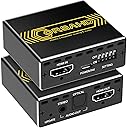
The CORSAHD 4K@60Hz HDMI 2.0 Audio Extractor Converter delivers high-fidelity audio extraction from HDMI sources, supporting up to 7.1 channel Dolby Atmos and DTS:X surround sound. It ensures smooth 4K UHD video at 60Hz with HDR10 and Dolby Vision, while bypassing HDCP 2.2/2.3 to prevent playback errors. Compatible with major gaming consoles and streaming devices, it offers plug-and-play ease and versatile audio outputs including SPDIF optical and stereo 3.5mm, making it a must-have for millennial professionals seeking premium AV performance without compromise.


| ASIN | B0DB82CYMH |
| Best Sellers Rank | #138 in Video Converters |
| Brand | CORSAHD |
| Brand Name | CORSAHD |
| Customer Reviews | 4.1 out of 5 stars 91 Reviews |
| Included Components | HDMI 2.0 Audio Extractor x 1,Type-C cable x 1 ,User Manual x 1 |
| Interface | HDMI |
| Interface Type | HDMI |
| Item Dimensions L x W | 2.3"L x 2"W |
| Manufacturer | CORSAHD |
| Maximum Supply Voltage | 5 Volts |
| Minimum Supply Voltage | 5 Volts (DC) |
| Mounting Type | Tabletop |
| Number of Channels | 5 |
| Number of Pins | 5 |
| Part Number | CO-EX11HAS |
| UPC | 635403250563 |
C**D
Finally, something that works!
TLDR: It works great! No video or audio delays. EDID settings are a huge bonus. Full Story: I have been trying to solve a problem that was incredibly frustrating. I have an older Yamaha receiver. It supports HDMI 2.0, 4k60 HDR. But, when I hooked up my new 4k HDR TV to it to get content from my Roku Ultra - I had constant audio and video drop-outs and the occasional (daily) HDCP error. No worries, I followed the advice from everyone and replaced my HDMI cables with certified HDMI 2.1 cables and made sure they were shorter than 3 meters. Problem did not go away. However, when I connected the Roku Ultra directly to the TV and then used ARC to provide audio to the stereo, all of the drop-outs and HDCP errors went away. I was able to use the controls on the TV to adjust the audio delay and the audio and video are in sync. But, I miss being able to see the display from the receiver on-screen. Knowing the actual volume setting (i.e. -25db) is an important quality-of-life thing and other settings that only appear on screen were missed (like the different DSP settings I had set up for different content). I was willing to deal with that, but the biggest issue I have now is that the receiver takes almost 2 seconds to start to play DD audio when it comes through Arc. This is not a big deal when you just start a show and watch it through to the end, but it is a pain if you pause something and then rewind a few seconds because you want to hear what someone said. This was what made me look for another solution. At first, I wanted to try a splitter. I figured I could send the full 4k signal to the TV and send a separate (ideally 1080p) signal to the receiver. This would not solve the problem of the on-screen content, but it would solve the audio delay issues. I tried 3 splitters, but none of them worked 100% of the time. Too often the Roku ultra box would decide that the TV was only 1080p. Other splitters said they could handle HDR, but they could not because the colors were totally messed up. Then, I thought I would try this guy and send the audio signal through the optical port into the receiver and send the video to the TV. It would not solve the on-screen issue, but it should solve the audio processing delay issue. Now we get to the meat of the review: This guy solved my entire problem. I decided to try to connect him up between the Roku and the Yamaha, and then go from the Yamaha to the TV. So, the HDMI chain goes: ROKU -> Extractor -> Yamaha -> TV. Since the Roku box doesn't "see" the Yamaha, and the Yamaha doesn't "see" the Roku (they both just see the "unknown device" in between them) whatever interaction was causing the drop-outs and HDCP errors have stopped. I'm back to my original setup and have the on-screen display from the receiver as well as the audio being in sync with no delays in starting up. This guy is powered by the USB port on my Yamaha, so it is only on when necessary. As a major bonus, I was able to use the EDID DIP switches to tell the Roku Ultra that my TV only supported HDR10. I don't like the Dolby Vision processing options on my TV and so now the Roku doesn't try to switch to it every time the HDMI is reset, it just sticks to HDR10. After trying 3 different splitters (all returned), upgrading my cables (unnecessarily) and suffering with ARC processing delays, I am finally back to enjoying everything without any drawbacks or compromises. Couldn't be happier.
D**I
This is more than an audio extractor, it is a HDCP2.2 to 1.4 adapter
I tried to play 4K movies from a Roku ultra 4K routed thru a Marantz SR6007 4K AVR to a Sony HD4K using HDMI cables. Everything is 4K, it should be just plug and play right? No. HPCP protocol stands in the way. Since ROKU and Sony have HPCD 2.2 protocol, the Marantz despite an excellent piece of gear is HPCD1.4 compatible, The Roku refused to co-operative. Only audio went through. Therefore, I need a HPCD 2.2 to 1.4 adapter between the Roku and the Marantz. I spent hours trying 2 brands (SIIG, Gofanco) with no success. I have no clue as of why they did not work. My guesses are other protocol conflicts that these two automatic devices can't switch into. Thanks to the information on this thread and some hidden clue that it should work. Indeed, it does. Don't be afraid of the EDID switches. It will help you find the right protocol. Just be patient and read the manual before you try it. Suggest steps: 1. Set your Roku Manually to 1080 display without using the converter. (read Roku manual) 2. Disconnect all HDMI cables. Disconnect all power to all devices(not just turning them off) 3. Set the EDID switch of the converter to 11000 4. Reconnect all cables 5. Reconnect power cables in this order: TV, AVR, converter, Roku. You should have a 1080 picture on your TV after waiting for 10-30 seconds (press Home on your Roku). Go ahead and try to change your Roku display resolution to 4K, 4K HDR, 4K Dolby, one at a time, and get the best stable picture and sound. Don't forget to flip the EDID switch to 11000 first. You should stop here and be satisfied. I found the best picture with 11000 unless you use 7.2 Audio. You can play with the EDID switches if you like, but I caution you may have to start all over if Roku refused to co-operate. Good luck!
T**Y
Helped me convert older headset to newer console
I was lucky enough to come across an older Astro A5 headset for Xbox one for next to nothing. However, it will not work on the new generation Xbox series X. After contacting the company directly Astro, which is now owned by Logitech they said the only way I can get the older headset to work with the newer system is an audio extractor. This one did exactly what I needed. I had it unboxed and hooked up and less than 15 minutes with all the settings needed to make this $300 headset work with my current generation console. The set up was easy. The signal is good. The sound quality is awesome. I have no complaints.
G**H
Not for Nintendo Switch/Switch2
The product does not convert the LPCM 5.1 to Dolby 5.1 from the Nintendo Switch/Switch2. The audio that extract from the HDMI cable gets downgraded to Stereo on the output of the Optical audio port. The Nintendo Switch2 does detect a 5.1 surround system when using the On Off Off On On configuration, but the audio output can only be heard on 2 speakers when doing the test from the Switch2. The quality on the video was not affected at all. It may work fine for other devices and configuration but i highly doubt that it will successfully extract LPCM 5.1/7.1 and convert it to Dolby Digital.
B**M
GOOD for Firestick to DAC (Amazon Music 192K) ****READ***
This thing works with some caveats! PLEASE READ CAREFULLY! What I wanted to achieve: Get my Firestick to output 192Khz/24bit to my SMSL DAC optical input (or compatible Amp/ AV Receiver) using the Amazon Music App playing Ultra HD 192Khz/24 bit tracks . (Without this adapter it will only ouput what the TV optical is: 48Khz/16bit... From what I understand this is standard for every TV optical out). If you don't care about Amazon Music and ability to play songs at high bitrates just plug an optical cable from your TV to your amp or DAC and enjoy 48Khz/16 bit content (you won't need this adapter). If you want the high bitrate Ultra HD playback capability proceed. NOTE: You also will need a male to male HDMI 2.X cable of the appropriate length and a male to male toslink optical cable to complete this installation. (Sorry I know this should be obvious to most but I wanted to include this bit) WARNING: Do the following steps carefully or you could damage your speakers from spurious digital noise!! This is no joke.... You have been warned. 1. Set the Firestick to PCM in Sound Settings then RESTART FIRESTICK. (BEWARE: If "BEST AVAILABLE" is selected it won't work and you could damage your speakers !!!) 2. POWER EVERYTHING OFF including firestick, TV, DAC, AMP.. Everything. 3. Use the included USB power cable to power this adapter from a USB port on your TV or a USB charger capable of 1 amp (most standard phone chargers should work if your TV doesn't have a USB port. 4. Set the little dip switches on the back of the apapter as follows: ALL DIP SWITCHES OFF except SWITCH 3. Set this one ON. 5. Plug the HDMI OUT of your Firestick into the INPUT HDMI port of this adapter. 6. Plug the aforementioned HDMI cable into the HDMI OUT of the adapter to an available HDMI port on your TV. 7. Plug your toslink optical cable into this adapters optical OUT and the other end into the optical INPUT of your DAC/AMP/Receiver. 8. After carefully checking all connections power everything up! 9. Once the Firestick completes boot up. Start the Amazon Music App. In the App settings enable Ultra HD (top right 'person' icon in the App). Pick a track or album in the App that is labeled "ULTRA HD". when the track starts click the ... Icon on the bottom right. Click the italics 'i' icon and "turn on streaming info" after you back out of this submenu to thetrack playing, it should should show your device capability in the bottom left. It should say: "Device Capability: 24bit/ 192Khz" Your done!! ๐ Hope this saves some frustration and helps someone out there.. Enjoy
S**S
It works... but only if your setup is exactly right
I bought this extractor because I wanted to get 5.1 sound from my Apple TV into my older receiver that doesn't have HDMI. On paper, itโs exactly what I needed, but the reality has been a bit of a headache. The Good: When it works, the picture quality is great. It actually handles 4K at 60Hz without flickering, which surprised me for a converter at this price. The build quality is decent tooโit's a solid little metal box that doesn't feel like it's going to melt. The Not-So-Good: The Audio Settings are picky: Getting it to output 5.1 through the optical port was a struggle. I had to manually go into my console settings and force the audio format because the "Auto" mode on the extractor kept defaulting to 2.0 Stereo. EDID Switch: The little switches on the front feel very flimsy. I feel like if I change them too many times, they might just snap off. Power Issue: It says it's powered by HDMI, but for 4K to stay stable, you must keep it plugged into a wall outlet. If you don't, the signal drops every 10 minutes. My Verdict: If you are tech-savvy and don't mind spending an hour messing with your device settings to get the audio synced, it's a cheap fix for an old sound system. But if you wan
J**E
So far, so good.
Occasionally has to be rebooted when unplugged and replugged, but otherwise works pretty much perfectly. I use it with my Series X and the sound is solid. Definitely better than using the line out from the monitor. Only real downside I've noticed is that you can't use variable refresh rate with it, BUT I'm honestly not sure if it's even possible for that to be supported due to it emulating a display with its own EDID. In summary, if you need to split audio from HDMI at either 4K@60Hz, 1440p@140Hz. or 1080p@240Hz, this should handle it just fine. Just know it can't pass through variable refresh rate for gaming. (thanks for removing the SPDIF port, Microsoft...) Mine also seems to be an updated model as it came with USB-C.
S**R
Good Unit for HDMI Audio Extraction
This HDMI audio extractor is fine. Quality is good and setup is simple but the directions are hard to read because they are so tiny. I am using it at my church for a blue-ray player because the projector has no audio out jack. I feed the audio into the main audio system. I am buying another for our laptop also because the headphone jack is not working when using the HDMI out. The audio extractor is compact. Nice unit! The resolution quality looks good. Sound quality seems good.
Trustpilot
1 week ago
3 weeks ago