


Desertcart purchases this item on your behalf and handles shipping, customs, and support to USA.
🎨 Elevate Your Artistry with 4K Precision & Pro Power!
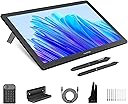
The HUION KAMVAS Pro 19 is a professional 18.4-inch 4K UHD drawing tablet featuring anti-glare laminated glass for a tactile, paper-like experience. It delivers exceptional color accuracy with 96% Adobe RGB and 1.07 billion colors, paired with dual PW600 styluses offering 16,384 pressure levels and tilt support. Designed for creative pros and serious hobbyists, it includes a Bluetooth programmable keypad, multi-touch functionality, and broad OS compatibility, making it a versatile powerhouse for digital art, design, and animation.


| ASIN | B0CPF3KWS2 |
| Active Surface Area | 16.1 x 9.06 inch |
| Additional Features | 16384 Levels of Pen Pressure, 60° Tilt Support, Anti-Glare Canvas Glass 2.0, Full Lamination, Multi-Touch Screen, Programmable Press Key |
| Best Sellers Rank | #125 in Computer Graphics Tablets |
| Brand | HUION |
| Built-In Media | 3-in-2 Cable, Full-featured USB-C to USB-C cable, USB-C to USB-C Power cable,PD Power Adapter, Bluetooth Express Key Keypad, Kamvas Pro 19 4K Drawing Monitor, PW600/PW600S/Pen Case/Felt Nib*5/Normal Nib*5, Palm Rejection Glove, Cleaning Cloth, Quick Start Guide |
| Color | Dark Grey |
| Compatible Devices | Desktop, Laptop, Smartphone, Tablet |
| Connectivity Technology | 3-in-2 cable, USB-C to USB-C cable |
| Customer Reviews | 4.4 out of 5 stars 1,930 Reviews |
| Display Type | LCD |
| Item Dimensions L x W | 17.67"L x 10.72"W |
| Item Highlight | 96% Adobe RGB Graphic Tablet with 1.07 Billion Colors, △E<1, Dual 16384 Pen Pressure Stylus, Canvas Glass 2.0, Keydial Mini |
| Item Weight | 4 kg |
| Manufacturer | ShenZhen Huion Animation Technology Co., LTD |
| Model Name | Kamvas Pro 19 |
| Model Number | GT1902 |
| Native Resolution | 3840x2160 |
| Number of Items | 1 |
| Operating System | Android devices that support USB3.1 GEN1 and DP1.2, Linux OS(Ubuntu 20.04 LTS), Mac OS 10.12 or later, Windows 10 or later Operating System Android devices that support USB3.1 GEN1 and DP1.2, Linux OS(Ubuntu 20.04 LTS), Mac OS 10.12 or later, Windows 10 or later See more |
| Pressure Sensitivity | 16384 levels |
| Screen Size | 18.4 inches |
| Special Feature | 16384 Levels of Pen Pressure, 60° Tilt Support, Anti-Glare Canvas Glass 2.0, Full Lamination, Multi-Touch Screen, Programmable Press Key Special Feature 16384 Levels of Pen Pressure, 60° Tilt Support, Anti-Glare Canvas Glass 2.0, Full Lamination, Multi-Touch Screen, Programmable Press Key See more |
| Specific Uses For Product | 3D Modelling, Designing, Painting, Drawing, Animation, Writing, E-Signature, Editing, Online Education, Remote Work, Teaching |
| Target Audience | 3D Modeler, Game animator, Photographer, Professional Designer, digital artist |
| Warranty Description | 1 year warranty |
M**G
I didn't think I'd like this but I'm really happy with it.
Color me impressed. For what many call a ‘clone’ this tablet really is impressing me. It has everything you need to get it started and some extras the competition should be including. You get TWO pens, and the battery lasts up to a week before it needs to be recharged, a pen-stand for that has 8 replacement nibs hidden away. You get a metal stand included, this sounds like “well duh you do” but sadly the competition isn’t including one and they want you to pay $100 for a plastic wonky one, also you get a tablet glove! That thing that makes your hand glide on tablets vs sticking to them. I honestly got this because I got teased by a lot of my friends and fellow comic artists for working on such a small tablet, my Surface Pro 4. So I had some store credit and decided to try this out while it was on sale. I was really nervous about it as I’m always hearing “There’s a trade off with the clone tablets”. Sure, maybe if you’re expecting a luxury tablet that’s got a metal chassis or whatever but this tablet has a glass screen, a ton of extras and feels sturdy. I worked on a piece for a while, trying to get comfortable with it and it’s impressive to say the least. I don’t think the parallax (distance between the pen & screen) is bad, way better than my old Wacom 12WX…as is the color accuracy. I’ve worked on the Surface Pro 4 for a while which has very minimal parallax and I honestly didn’t have much trouble on here with the Huion tablet. Also there’s no hot spot on the face of the tablet, you know that spot where your hand would stick to or just start to get sweaty, none of that here. The pressure range of 8k is really good and I noticed it was higher than my Surface Pro 4’s 1k pressure range. That said I’m not so blown away that I feel the SP4’s pen is bad or unusable but there’s a difference. You have a solid range of control that’s to be certain but I think past a certain number you’re less and less likely to notice. Must be said, some may be turned away by the plastic pen on the glass screen (there is a textured screen protector but we’ll get to that and why it’s bad with my tips) and I’m fairly spoiled with my Surface’s pen tips giving me a range of 4 different feels as this only comes with 1 type of 8 nibs, smooth and plastic. There are speakers in the unit, I haven’t tested them but I honestly haven’t seen a good set of speakers in a monitor/TV since the ol’ CRT days where they could fit larger drivers in there. I can’t give my 2 cents on that since I haven’t tried them but, this is an artist tablet and I’m focusing on that. I tested it with Clip Studio Paint EX and I’m including a pic of the workspace & the piece I finished so you can suss out how it can work. I did one doodle before it and then straight to this from being used to my Surface Pro 4 so I didn’t have much of a learning curve to get on with this. I had no compatibility issues and had it working with the software instantly. Messed a bit with Photoshop and the pressure seems to work straight away. I don’t use photoshop much for the art end so I can’t say fully how well it works but when I made some brush strokes they worked fine enough. As far as negatives, well the monitor is large and a bit heavier than you’d expect with a lot of modern ones really slimming them down. This monitor is a fat one, and the stand really makes the footprint of this device pretty big on your desk. This with the stand isn’t going to strain your muscles to move it about but I don’t think you’ll have this on your lap while you’re sat back in the chair either. The pen I’ve heard feels cheap, I’d say it feels very light and there’s no rubber like on the wacom ones so that might be where that feeling comes from. The screen protector that’s supposed to add a texture is worthless and really isn’t worth having on…When you use it, a rainbow effect appears as you’re wearing into it and it makes the tablet unusable. You simply can’t see what is going on under it, so stick with the glass, your plastic pen won’t hurt it but make sure you’re not wearing a watch or whatever. The other thing is there’s no eraser on the pen’s butt, there’s two buttons which are programmable but it’s something you’ll either have to learn to live with or adapt if you’re gonna grab this. Overall, if you’re looking for a tablet where you can work right on screen this is an excellent one to have pro or hobbyist alike. If you’re just starting out it has everything you need, especially for the cost. I’ve worked on Wacom products for years and the Surface Pro 2 and 4 for ages as well and this tablet impressed me. Thing to keep in mind, this is not a luxury tablet, it’s not ultra thin and light and it’s not made of an aluminum chassis, but it’s well built and I feel is worth the asking price. Especially considering I’ve spent far more on Wacom with their 12WX and was underwhelmed. Here’s some tips for setting the thing up since the youtube reviewers I’ve watched missed some things: -You need to calibrate the colors out of the box. Once you do the colors are really nice and the 1080P works nicely on this size monitor. -I would say remove the textured screen protector. Because the screen is glass your not going to do much harm to it with a plastic nib. I have a Surface Pro 4 which I’ve worked on for 2 years and without a screen protector. After all that time there’s no damage I can see on it. The screen protector on this thing has a texture to it to make it more like working on paper. The problem is it’s useless and ruins the experience, The colors are ruined with it because of the matte texture and as you use it, a rainbow effect appears as you use it. It’s really bad and isn’t something I think is worth the texture effect. I was genuinely struggling seeing my linework on the monitor till I removed it and it’s vastly better. -What the youtubers got wrong: They say the stand gets stuck on the cables, this really caught me as odd as the stand has a massive hole in it for you to put the cables through so it makes it impossible to put the stand on the cables in any way. -Be sure to NOT install the drivers off the CD, you’d be wasting your time. Go to the huion website and download the fully up to date drivers there. -There are no express keys, honestly I’m so used to a keyboard that this didn’t even register till I saw others complaining about it. -No touch interaction, this IS what got me since I’ve been working on a Surface Pro 4 using 2 fingers to rotate and zoom. That’s simply not here. Which is a shame but, something I’m getting used to again. -Wash the glass screen, there’s some form of residue that makes the pen kinda drag against it, but after a microfiber cloth+water wash over the glass it’s super smooth and nice. -Make sure you uninstall all other tablet drivers before using this. My tablet history: (Unknown name brand), Wacom Graphire 2 & 3, Intous 2, Wacom 12WX, Surface Pro 2 w/ Wacom Bamboo Feel, Surface Pro 4, Huion GT-191 And hey, if you have any questions or want me to clarify something feel free to leave a comment and ask and I’ll answer as best I can. Update: After about 2 weeks or so of not charging the pen and tons and tons of use it finally needed charging. Didn't expect that! -Mike G
C**N
Revisiting the Huion GT-191
This review reflects years of use, speculation, and finally, testing of a variety of products that led me to this purchase decision. The Decision: After hearing about the Wacom Cintiq in 2013, and testing various models of drawing tablets and screens, I knew that one thing meant the most to me: Does it work? Does the device support what do with my style of art? Does the device make sense for me to purchase? In other words, will my experience with the Intous Pro that I have used for so long transfer flawlessly to this new type of device? Does it fit my budget? Does me using this equipment for my everyday work justify the cost of the device, or do what I have already (Intous Pro in this case) adequate to do my work as a digital painter? The Crit of the Intous Pro 16 vs Huion GT-191: I was pleasantly surprised to see alternatives to the much critically acclaimed Wacom Cintiq years down the line in the middle of my research. But I was "comfortable" with what I had, which led me to buying Cintiq Pro 15.6" (or whatever size it is), to which I was very underwhelmed when I saw the low contrast, and oddly enough, the same feel as using the Intous Pro. I guess I was really expecting that grain texture of the surface of the screen, But those things didn't dampen my taste in the device, it was the price. Even for a refurbished model I could not justify the cost for an experience I've had once before for a whooping $1303.45. I returned it. (There was also a defect in the device that left one of the leds to shine brighter than the rest of the screen) It wasn't long, but for a concentrated period of time I overhauled on my research into getting not just Huion but Ugee, XP-Pen, and many others and weighed out the benefits of each device. What was most important to me? What will I do if this purchase doesn't pan out? What were other people saying? Those questions put me over the threshold. I made the purchase once a saw a repeat review for the same device the Huion GT-221 which I also considered purchasing. With the bad taste left in my mouth by a Wacom fanboy, I decided on this device because it had been out the longest. and therefore much more feedback and support. Whats the verdict? Contrast. Even with adjustments in Nvidia Display Adapter, got the colors looking good, but can't quite get those high and low darks you would expect from a normal monitor. Calibration. A pain at first, but once you determine hand placement for each point you calibrate your pen to where hand lays naturally when you draw, you should be golden. The Build. Freaking Awesome, no complaints. I'm a 360 lb man drawing on this surface and it does not budge. HOWEVER: (Fixed) The software is EXTREMELY finicky, often times overwriting my pen pressure settings which forces me to unfortunately reinstall the Huion software. After having the device for less than a week and having to do this twice is making it quite tempting to go back to my Intous Pro. JUST SAYING! I will be contacting Huion over this and I will update this review. UPDATE 7/3/18: Three days ago I tried using Adobe Illustrator, and to my horror the pressure sensitivity doesn't work. I've been hearing that there is a temporary fix using an Wacom driver, but I've yet to find out which one, and if its true or not. I've been trying to make contact with Huion, but to no avail. Getting in contact with them is almost like playing a game of cat and mouse unfortunately, but I will give them the benefit of the doubt, I have been contacting them in the wee hours of the night. Unfortunately, this product is moving from 4/5 to 3/5 stars because of it's lack of support over this specific issue that other users are also having. This is an investment, and a company that sells these kinds of products, even as a cheap alternative, need to understand that the user base is paying attention when they don't respond to these kinds of issues with their investment. UPDATE 7/4/18: I received a response this morning from Huion, but I was again disappointed by their lack of support for their own product. I was told to run in "administrator mode" and "turn windows ink" off in the pen settings, assign "switch brush" to one of my pen buttons, and update to a new driver, which I already had, which they would've known if they were paying attention to my messages. UPDATE 7/5/18: They just got back to me this morning with an updated driver that wasn't available on their website, and that seemed to do the trick. 4/5 stars again. Conclusion: (Updated 7/17/18) My overall user experience/customer service experience with this device has been nothing short of amazing. Aside from a few small hiccups with the driver not working properly with Adobe Illustrator CC, and it being bit of a chore to calibrate the screen with the new driver, I cannot recommend this device more for the artist that wants to break into the drawing monitor scene. I will be giving this a 5/5, because in the end, Huion did reach out to me EVERYTIME I had a problem, and were proactive to solving my issues correctly. My one comment would be for the new 14.5.0 driver to come up with some sort of guide as to get the best results possible without having to reverse engineer the calibration process (see attached link). ~Christopher Ahearn 11/22/2019 After a long time with this machine, I am underwhelmed by the whole drawing tablet experience. I've since now switched to my Intous Pro that I got back in 2013, and I am glad to say I am much happier with the free desk space. It wasn't a bad experience. It was something that left to be desired with all the re-calibrating until I got that settings that felt just right. Overall it didn't feel natural to me in a confined space like I had, and the screen size and resolution also left something to be desired. My workflow changed, it worked, and then some personal stuff happened to me throughout the year and it felt the setting up to paint became a drudgery instead of an experience I was hoping to get out of this device. It's good for it's purpose, but honestly painting for me was never about the tool, but whatever I could create out of my surroundings. I still support Huion because Wacom is just too damn expensive for an experience that concentrated more about the technology than what you could get out of it. In other words, the experience a pen tablet could be to someone with different tastes and needs could lead to an epiphany of creative juices to the same man or woman can get out of an pencil an paper. I really wanted this to work out. But on a side note, I tried the Apple Pencil and Ipad Pro and that to me felt like a better experience.
S**R
Good Quality at This Price Point
After viewing many “unsponsored” YouTube videos recommending this product, I finally caved and purchased this tablet during a sale period. While it’s certainly no Cintiq, the price point makes the Huion KAMVAS GT-191 a steal of a deal. I had some suspicions in mind, as I’ve heard that some older Huion tablets fail within the first month or two, likely due to poor quality control or improper use by the user. However, after a month of daily use, I was pleasantly surprised to see that this updated kamvas model appears to run much more smoothly than its predecessors. PROS: The build quality is very sharp and appealing to look at. There is minimal IPS backlight bleed, even less than my cheapish desktop IPS monitor. Colors are accurate as far as I can tell, compared to my other calibrated monitors, although this only applies to the hue. I would recommend running a color calibration tool, as the colors are not quite right out of the box (greys appeared reddish for me). The battery life on the pen is fantastic. I’ve been using this tablet 2-3 hours a day for a month and not had to recharge either of the pens yet (though I have been using both). It’s not as convenient as a passive pen, but this system works out surprisingly well. Comes with 2 pens, so you can use the backup while the other pen charges. Charging only takes about 20 minutes or so. Haven’t tested this too much. Has three input types, VGA, HDMI, and a dual-link DVI-D port. I saw some complaints about the glossiness of the tablet without the protector, and it really isn’t that bad while it’s on. Just don’t put a desk lamp directly over it. Despite a month’s worth of use, there is no visible degradation on the nibs. Other than some issues with installation, the drivers are working as intended. After some (not so) extensive testing in ms paint, I don’t think there is much noticeable jitter at all. CONS: The pens must be calibrated daily, as I’ve discovered. (This only takes 30 seconds.) EDIT: This is relatively negligible if you're fine with some parallax. No tilt support, so if you hold the pen at a different angle than the one at calibration, the cursor may suddenly be offset. The colors are washed out. I would not recommend doing coloring exclusively on this tablet, so be prepared to use a second monitor to check on the colors occasionally. High response time, causing some ghosting. It isn’t too terrible, but noticeable when panning the screen. Installing the drivers initially was a pain. See notes on my workaround. The screen protector the tablet comes with is something you really should just throw away immediately. While it does give the tablet a more matte feel, it is near impossible to apply without getting air bubbles or scratches on the protector itself. Even if it goes on perfectly, the screen will look slightly blurred. If you take care of the tablet, you won’t get scratches on it. Plus, the screen will look far sharper. Buy third party if unsure. It’s nigh impossible to route the cords under the tablet at any angle less than 45 degrees using the default mount. If you want to draw at a lower angle, you’ll have to buy another mount. The far corners and edges of the tablet has a slight calibration offset, but I find it to be workable. This effect only applies to the outer 2 cm or so of the screen, so unless you do a lot of drawing on the very edges, it should be fine. NEUTRAL/PREFERENCE Not a fan of the charging cord for the pens, they are USB-A to (a very thin) coaxial that plugs into the top of the pen. It works, but I’d prefer a proper micro-usb connector. The screen surface feels like a whiteboard, but this means that your hands are more likely to stick instead of gliding across the screen. This product does comes with a glove, and I actually prefer the smooth surface as opposed to a more papery texture. Pressure sensitivity feels a little off. This can be changed in the driver settings, but I have yet to make my handwriting a consistent thickness. It feels more like “light pressure with variation” then immediately goes to “thick pressure with variation.” Takes a little bit to get used to. The settings menu is nothing amazing, just basic monitor settings that you’d find on more generic computer monitors. The Huion program must be running in the system tray for the tablet to detect input. It is not a system service, so the program itself must be running on startup. There will always be a slight parallax effect, but it’s something you just get used to, like any other screen tablet on the market. Having a large screen size is a huge benefit to me (drawing from arms and shoulders, as opposed to only my wrist on my small intuos), but this does mean that the tablet will take up more desk space. The tablet gets a little warm upon long hours of use, but it is not noticeable while wearing the glove. I don’t have any concerns with this product overheating. I still do shut off the monitor when not in use, however. Pens are much more sensitive than the cheaper line of Wacom Intuos pens. To an extent. It doesn’t quite have the same feel, almost “softer” than my previous Intuos tablet. OTHER NOTES The package I received did not come with extra nibs. I don’t think this will be an issue, as the nibs I have now have yet to degrade. Upon first time use, the pen will stick to the screen after each stroke. This will go away after a week or so. The default USB/Display cords are about 4 feet long, so if you want the tablet to be farther away, you’ll need new cords. Just be sure to get cords that have a small header; you’ll have to bend them 90 degrees under the tablet. When calibrating the pen, look at the tablet straight on each calibration point, holding the pen at the usual angle of drawing to avoid a larger offset to the cursor. The cursor would sometimes freeze in place when I installed the drivers, but the computer would still respond to clicking. Make sure you fully uninstall any previous drivers before installing the new ones. This may be tricky; the older driver software actually does not do a full uninstall, you have to remove driver components manually from the “programs and features,” and restart when appropriate. After a few hours of tinkering, the latest drivers have been working perfectly for the last month. The screen does not have to be on to send input to the PC. CONCLUSION: The Huion KAMVAS GT-191 is a great value for any artist, however I can’t say much about the opinions of professionals. It works well for me as somebody who likes to draw recreationally. Even though I picked this up for $380 (flash sale), I still think this piece of hardware is more than worth it at full price. I don’t feel like I’m getting ripped off by a “imitation Cintiq,” but instead receiving a decent quality product at a fair price. It’s probably not the best tablet on the market, but this purchase exceeded my expectations, hence the 5 stars. EDIT March 2020 (1.25 Years Later) I've been drawing on this tablet 3-4 hours a day and as far as I can tell, this piece of hardware is still going strong as when I first bought it. No visible degradation of the nibs, no scratches on the unprotected screen. The drivers now work well, though there is the occasional hiccup when working with Windows Ink enabled. The overall battery life of the pens have decreased, however. I generally have to charge once per week. I'm aware there is a newer model that is more akin to a proper Cintiq, but this tablet still gets the job done. Would highly recommend if this goes for an even lower price.
A**N
Excellent with quirks - READ: Comparison with Cintiq Pro 17
Update @ 05/02/2024 -- 4 Stars -- Keeping Huion, Returning Cintiq I really thought the Cintiq was going to be it, but it's not. Turns out after a couple days of use, the Cintiq Pro 17 has more quirks than the Huion Kamvas Pro 19. Also the Cintiq has deal-breakers which the Huion does not. Short Story: Huion has quirks that are annoying but easy to fix. It never requires me to restart my computer and rarely requires me to restart the Huion driver. Cintiq requires me to restart my computer for just about everything and WILL NOT let me use Toon Boom Harmony. RESULT Cintiq is going back... Update @ 04/30/2024 -- 4 Stars -- I got the Cintiq Pro 17 (compared) If you look at my previous updates, you'll see that I am mostly happy with the Huion Kamvas Pro 19 after ironing out all the quirks. For this update: What are you missing by keeping the Huion Kamvas Pro 19 over the Cintiq Pro 17? Kamvas Pro 19 PROs: - Save $1500 - Pen to screen toothiness feels better - Pen Pressure feels more natural (better) -- yep, I admit it. - Pen Responsiveness in Photoshop is WAY FASTER than Cintiq. - Pen Eraser on the back of the pen. - Very nice quality feel dual pen holder - 1" larger screen (not super noticeable but its there) - The display feels as quality to me as the Cintiq Pro 17 - Gestures work better, especially the 2-finger & 3-finger undo/redo gestures. - A dedicated keypad with a dial that you can actually use (unlike cintiq's silly grips) - Software Configuration for Pen Pressure Curve is MUCH BETTER than Cintiq. - Software Configuration for button mapping is a little better than Cintiq. Kamvas Pro 19 CONs: - You must force-close the Huion Software to get pen pressure in Concepts/Sketchbook Pro and other apps that rely on Windows Ink. (Photoshop works fine with the software) - Closing the Huion Software for Concepts or Sketchbook causes you to lose the custom functionality. - Sometimes when waking up the computer, the huion software forgets which screen it is controlling when you have multiple screens. Cintiq Pro 17 PROs: - You plug it in, install the drivers, done. No quirks, not a single one. - 120hz Cintiq Pro 17 CONs: - Price - Pen holder is a flimsy plastic thing that bolts to the side of your screen and gets in your way when you have the screen laying flat. - Pen holder has a top mount but you can't mount it because the usb-c and power cables won't let you, wow, really Wacom? - Ridiculous Gamer Style grips on the side that you cannot use when the screen is laying down. So all those buttons are useless. Whats worse is we have no keypad to use as an alternative. - Touch enable/disable button is behind the back, not easy to access like it is on the Kamvas. - Software Configuration for buttons and pen is different depending on whether you're using the "Wacom Center" or the "Wacom Tablet Properties" software. If you change settings in one, it is not properly reflected in the other and they can overwrite each other. Conclusion: All things considered, I am going to keep the Cintiq Pro 17 even though I like the Kamvas Pro 19 better. I feel that if Huion fixed their quirky "Windows Ink" issue, it would be a no-brainer as it is clearly the better device for less than half the price. But for me at the end of the day, I just don't want to bother fiddling with it, I just want it to work and forget about it. I also feel like if Huion were going to fix their quirky problems they would have already as these quirks have been part of their products for a long time. So it's not worth it for me to wait and hope. Update @ 04/28/2024 -- 4 Stars Okay, I've worked out some of the kinks and it's better but quirky. I uninstalled my wacom drivers and then reinstalled my huion drivers. This helped. I followed Huion's troubleshoot instructions to "repair" WinInk an WinTab. I followed Huion's troubleshoot instructions to enable WinTab for Photoshop. Now the Kamvas Pro 19 seems to be much more consistent, however, I still have 1 major issue. The issue is, pen pressure is only available for certain apps under different circumstances. I did a full analysis of all the conditions that seem to affect the pen pressure. The following table of conditions defines how to configure Huion to get various apps to work: NOTE 1: For Photoshop only -- the first time after your computer awakes, you must open the Huion app and enable then disable Windows Ink. If you don't do this, photoshop does not recognize the pen. I believe this must be kickstarting some process that reminds the huion driver that photoshop should use WinTab (guessing) NOTE 2: Sometimes the Huion Driver is running but does not appear in the windows tray. So to shut it off so you can use Concepts, you must force-kill from the windows Task Manager. NOTE 3: I have only laid out 3 apps below because every app I have tried, behaves like Photoshop, Concepts or Windows under the same conditions. I hope this helps some of you # Windows Ink Off Huion Driver is Running (active in windows tray) Huion App Window is Open Windows Ink = Off (Driver is set to use WinTab for photoshop) - Photoshop: Pen works well, lightning fast and the pressure is excellent. - Concepts App: Pen works well, but no pressure. - Windows: Clicking, dragging, everything works as it should. # Windows Ink On Huion Driver is Running (active in windows tray) Huion App Window is Open Windows Ink = On (Driver is set to use WinTab for photoshop) - Photoshop: Pen works well, lightning fast and the pressure is excellent. - Concepts App: Pen freezes intermittently, but no pressure. - Windows: Pen Freezes intermittently. Clicking, dragging, everything works as it should. # Driver Off Huion Driver is NOT Running (exited from windows tray) Huion App Window is NOT Open - Photoshop: Fail, nothing, pen does not work at all. - Concepts App: Pen works well, pressure is excellent - Windows: Clicking, dragging, is unreliable. After all this, why do I still give it 4 stars? I am flexible. The price is $1500 cheaper than the Cintiq 17 so I must adjust my expectations by $1500. This pen display works AMAZING when it works and it does work under every circumstance, it just needs some annoying tickling to get it to behave. Also, for my needs, I only need pen pressure for photoshop and Toon Boom Harmony, both work fine when the huion app is open. There is never a case for me that I need to switch to Concepts or Sketchbook, etc and need pen pressure. So I do not experience the need to kill the huion app within my workflow. So this is an annoyance but not a deal breaker. Having said all that, I have already ordered the Cintiq Pro 17 and if it performs as well as this Huion Kamvas Pro 19 but without the quirks, then I will be returning this Kamvas Pro 19. If the Cintiq Pro 17 has even 1 quirk, just one annoyance, then its not worth the extra $1500 for me. Update @ 04/26/2024 -- 3 Stars Somewhere between "All good things" and "Too good to be true" lies this Huion Kamvas Pro 19. It was great for 1 full day until I turned my computer off and then on the next day. The short version is: I am able to get this pen display to work fully for every situation I need. However, switching between photoshop and some other drawing app requires minutes of tweaking settings, restarting the huion driver, or even restarting my computer. Apparently some apps need "Windows Ink" and some apps hate Windows Ink. The feel is very good and when it does work, I'd say it "feels" better than my Cintiq Pro 24, but the hassle is not worth it. I want a smaller form-factor, so I am going to get the Cintiq Pro 17 and do a side by side comparison. I suspect I will be returning this Huion Kamvas Pro 19. It's too buggy / quirky. Original Review @ 04/24/2024 -- 5 Stars I have owned several Cintiqs, the older Cintiq 21, a the new Cintiq Pro 24 and my wife also has the Cintiq Pro 32 (both with Touch). My wife is a professional artist and I am a photographer and hobby-artist. I have also owned earlier-gen Huion Pen Displays and they were junk. The pen just felt terrible and the windows experience was unreliable. This Kamvas pro 19 is a whole different thing. Shockingly good. In my opinion this Huion Pro 19 (4k) is outstanding. I'm using it on Windows. The touch gestures are perfect and the pen pressure is really nice. Both pens are really nice, they feel premium. I like them as much as my Cintiq pens. The drawing feel is BETTER than my cintiq. I'm referring to that "paper" toothy feeling. The combination of nib and screen feels the best I have experienced. The included keypad is a really nice touch. It is fully programmable and while it is plasticky it works well and does not feel like it is going to break as long as you're not abusing it. PROs & CONs: - Pen Accuracy: - - Very accurate, spot on, even when tilted. You have to tilt very extreme before there is any misalignment. - Parallax: - - As good as any pen display I've tried, though not as good as an IPad or Surface Laptop Studio. - - I actually think the parallax is better on this Huion than the Cintiq. - Responsiveness: - - Most apps perform very very well. Photoshop (as usual) is the most sluggish, though this Huion is about the same as my Cintiq Pro 24 Touch. - Touch: - - In windows it is perfect. Though some apps suck at touch, but that's not the display's fault. - Palm Rejection: - - They provide a glove which works 100%. Though without the glove, I sometimes get little blips, but it is very easy to turn off touch (just like the cintiq) and I usually use the glove. - - A request to Huion, it would be nice if there was a pen-shortcut option to enable/disable touch. - Photoshop: - - Photoshop is the most sluggish of any drawing apps that I use. Depending on the brush type it can be really bad even though I have a fast CPU and GPU. i9-13900 & RTX4080. About the same as Cintiq. - Illustrator: - - Gestures in Illustrator are not to my liking, but I don't think this is the displays fault. Adobe is so archaic. Pen works excellent and is very very responsive. - Toon Boom Harmony: - - Works incredibly well on Windows. Gestures are perfect. Pen is lightning fast. Pressure feels good. - Adobe Animate: - - (only this one app!) I noticed the pen sometimes freezes for a moment and then continues. I have also experienced this with my Cintiq in some other apps. The solution in Windows, for both Cintiq and for the Huion, is to turn off "Enable Windows Ink" from the Huion Driver App. Its very easy to turn on and off, just a quick click. Note that disabling windows ink will disable pen pressure in some apps. I leave Windows Ink on all the time, I only turn it off for Adobe Animate.
J**N
This is a legitimately great tablet
EDIT: So I finally gave in and got an Ergotron arm for this. Do yourself a favor and get one. Seriously. Best purchase I've ever made for my computer. I love being able to grab the tablet and rotate and tilt it around in front of me while I work. And it also completely solves the wobbley stand issue :P Also over a year later of heavy daily usage, meaning 18 hours a day, 7 days a week (I am working two full-time art jobs from home). This thing is still going strong with no issues. Not sure why this comes with so many extra nibs, though. I'm still on the first nib and it's showing no signs of degradation. Also to note, I am getting ~ 3-4 weeks of solid use per pen on a charge. It's easy to rotate them out and keep charging the one that isn't in use so there's no downtime. I was reading all of the negative reviews, and I'm sorry if any of those were bought based on my glowing review. Computers are funky and can get mixed results, but I had no problems getting this thing set up. It took maybe 5 mins and has been working great since. ***************** Just for some personal background, I have been working professionally as a 3D Artist for the past 7 years and have used Cintiqs at work and have an Intuos 4 at home. I've been wanting a Cintiq at home but could never justify the cost, despite the fact that it would help my career. It's just WAY too much money. I primarily use a tablet for sculpting in ZBrush and texture painting in Substance Painter. Translation: High color accuracy isn't top priority. So after doing plenty of research on all kinds of different Cintiq alternatives over the years, I finally settled on the Huion GT-191. And boy, am I happy! I did not need to calibrate the color on the tablet at all (which honestly could also mean the color on my main monitors are off, too. But hey, at least it's consistent!). The color difference in the picture is simply due to viewing angle. I assure you it looks exactly like my primary when you're looking right at it. Parallax is about on par with the Cintiqs I've used. No complaints there. And I'm not even going to list the lack of express keys as a downside. If you understand what kind of tablet you're buying, this should A) not come as a surprise and in which case, is irrelevant... and B) you should be comfortable with alternate methods of hotkey control. ie. keyboard, separate hotkey controller, 3d mouse (pictured on left of keyboard), etc. The screen protector is meh, but I prefer the glossy screen anyway. Keep in mind, when you take off the protector, it leaves this really weird residue on the screen. It feels like the nib randomly slips and grabs when you move it around the screen. I fixed this by spraying the screen down with Windex and wiping it dry with paper towels. It was silky smooth afterwards. The #1 biggest downside this tablet has is the dreaded cable placement. Every youtube reviewer mentioned it, but they never actually showed the problem. So I thought "pshh, I bet they probably didn't try to feed the cables through the hole in the stand." I can confirm that this will NOT solve the problem. In fact, when attempting to lay the tablet completely flat with no cables attached at all, the tablet would wobble. This is a result of the back of the tablet protruding past the stand legs when folded completely down. THAT SAID, I never work at that angle. Ever. Generally, 40-45 degrees is optimal for me, and this has no problem handling that. I will most likely purchase an Ergotron arm at some point just because of increased flexibility and the ability to move it off to the side to free up desk space, but I can deal with it fine until I do. I did not have any driver issues, and it has worked flawlessly in every program I've tried it with. Specifically: ZBrush 4R8, Substance Painter, Photoshop CC, Marmoset Toolbag 3, Modo 11, 3ds Max 2017, Mari, Paint.NET, and Sudoku. To sum up, this thing is a gem. I love it! (Note: I added a picture of my work to show you that it does indeed work for 3D painting)
O**E
Yes, it's a great tablet
I've only had it for a couple of weeks but so far I'm a very happy camper. While I had originally planned to use it strictly as a drawing tablet, after a few days it became my primary display. It's like I have a 19" laptop on my desk for everyday tasks that can also be tilted down for drawing. Graphics pros will probably want to adjust the colors, contrast, et al to their liking, but to a retiree's eyes it actually looked pretty good with the factory presets. Ditto for the display's parallax -- I don't consider it an issue but I suppose an art pro with better eyes or more experience might disagree. I will however echo the many voices advising you ditch the screen protector. As to the physical configuration, I had no problems drawing with the stand set on the lowest notch (24 degree slope) although I've found I'm personally more comfortable drawing on a steeper incline. My guess is that those users reporting problems getting the angle lower than 45 degrees might be using the thickish HDMI cable Huion includes -- I needed a 10-foot HDMI cable for my desk setup and I've had no issues using a thinner HDMI cable: PERLESMITH 2-Pack 10 Feet Ultra-Slim HDMI Cables 3D & 4K Rated with Ethernet - Bonus a Right Angle Adapter and 3 PCS Cable Tie Driving the display with a GTX-1080 Ti video card via that thin HDMI cable I haven't seen ghosting or other issues. No problems in viewing 1080p movies or in playing games. Admittedly I haven't stress tested the tablet with recent top-end games, but if you're a serious gamer you're probably not looking at a 1080p device as your next display purchase anyway. I was a little concerned by reported software compatibility questions mentioned on the Reddit Krita forum, but I've had no problems. Given that I'm using the month-old June 2018 V2 driver for Windows from Huion's website, it's quite possible the previously noted problems were fixed in the latest driver. So far my noodling (technical term) with SketchBook and Krita has revealed no issues. I did have to crank up the sensitivity a couple of steps in the Huion configuration app to make brushes work to my liking, however. Final verdict: this is a great value at the current price and a bargain if you catch it on Cyber Monday or a similar deal. I'm happy with it as a drawing tablet and was pleasantly surprised by its performance for other computer uses. Again, I'll grant that art/graphics professionals might object to some fine points I'm not catching, but as an amateur artist I absolutely love it. Enough so that it replaced my old 22" display on the desktop.
M**A
Amazing tablet, on paper...
Three things led me to return this product. 1.) The left hand support, is... so not there. I flipped the screen and the express keys, but it just feels so forced. It's like left hand support was an afterthought, like "oh, maybe we should do something about that huh?" after assembly had already started. I mean, just look at the buttons. If you flip it upside-down (as you do for left-handers), the power button is literally upside-down. Not elegant. The monitor's menu when adjusting color, brightness, etc. is oriented for right-handers, EVEN after flipping everything, so I had to flip my tablet just to mess with the settings. Not left-hander friendly at all. 2.) Speaking of settings, the drivers really took a hot minute to get right. To access the monitor menu, you have to long-press the Function key. Or in my case, you can just press random express keys after your driver bugs out. I had to reinstall the driver so many times, and YES, I uninstalled any previous tablet drivers before anything. The UI is not user-friendly, and it's pretty bare-bones. 3.) The worse thing however, that made me put the thing back in the box the DAY I received this tablet, was the screen. The screen itself, looks beautiful. It popping out of the frame, is not. I could press the screen down, and it would stick for a while, and then pop back up again. Most likely due to weak/faulty adhesive, that was more than annoying because you're essentially drawing on an uneven plane, not flat, like you know, a tablet should be? I don't know whether it's because they skimped on the glue, or if the battery was bulging, doesn't matter. Instant return. The product itself is cool. I probably was unlucky and got a bunk tablet out of the assembly line. But getting that is enough for me to go to a competitor, sorry. If it's any consolation, customer support was quite fast in their response, but a defective product straight out of the box really turns me off to any of their line. I will be avoiding Huion tablets unfortunately, and am excited to receive my XP-Pen Artist 15.6Pro, the tablet I ordered just now after completing my return and should've gone with in the first place.
L**O
my first screen tablet
I have been wanting to get a wacom cintiq for quite a long time but feel like it's made for professionals, and of course... way too pricy... I wanted one with big screen and with cintiq the big ones are like over $1000 now Huion is like the dreaming choice for casual artists, big screen with fair price...WHY NOT. And there are a lot of nice reviews so I completely gave up on cintiq and bought this. (but can't compare the two since I never use a cintiq before) I love how the packet include a screen protector THIS IS REALLY IMPORTANT. A lot of screen products I bought don't come with a screen protector and you have to buy it separately. There are also gloves and extra pen and a bunch of extra pen nibs it's really neat!!!!!! I remember the wacom intous I bought only gives like one pen with 2-3nibs? Also, screen tablet is so much better than regular tablets, it's so much easier to match your pen coordinate with your drawing. And the screen size is just so big... it made me really happy Now a few things I would warn other buyers... The color is kinda...dim? it's really obvious when you put it near other display products like laptops and ipads. I spent hours adjusting the display color RGB and screen mode to make it look like my laptop and it's still too grey-ish. it's a little annoying since the color that shows up in my laptop is not exactly what I want. I had to make the display 'duplicate' when I am working on the colors so I can compare it with my laptop. ( I heard there's some way to fix this issue by changing settings for the display output...will try later.) Another thing is the availability of buttons, there are only the two buttons on the pen for you to do quick things (like undo, pick color, switch to eraser ) unlike some cintiq products which have a few buttons for you on the side of the screen and you can put your hand there anytime to do undo or something. With Huion you can only have two actions at one time. For example I set the buttons to 'switch pen' and 'undo' when I do lineart, and then set it to 'switch pen' and 'pick color' when I do color, while putting my hand on the keyboard to do the ctrl+z undo. It may get a little frustrating switching all these things.
D**I
Honestly really good
I bought it a month ago. The pen lag is very minimal, not noticeable at all, the colours are more vibrant on the display, the buttons took a while to get used to but they all work perfectly without any issues. The only thing I got confused by was installing the tablet, as this is my first time using a display drawing tablet. I chose to buy this after EXTENSIVE research, and I'm so so happy with what I received. Side note: it also works decently well as a second monitor.
M**R
Awesome drawing tablet for the price. Worth double the cost
I see others complaining about lag etc... honestly you can't expect $1500 performance from $250 price tag used or $600 new product. Depending on the brush size and the size of the canvas you will see some lag when using very small brushes while also moving the pen slowly accross the screen. It makes some getting used to. There is a learning curve. If you want performance that mimics using a real brush then you are going to have to pay 4 times as much for the display and also pay for a gaming computer. This display and pen coupled with the huion keydial keypad for use with CAD softwares like FreeCAD or AutoCAD/SolidWorks is more than adequate and comparable to much more expensive alternatives. The most time consuming process is setting the keypad short cuts for each h individual program and also configuring the keys on the edge of the screen that will best suit your workflow. Even not set up properly for my needs yet and I can already see the benefit of buying both items for my 3d modeling. They will increase my efficiency and speed at getting things done to more than justify the expense. If you buy budget equipment you have to accept that there will be a compromise with performance.
ع**ل
جودة رائعه
تجربتي بعد تجربة اجهزة الواكم وسأقرن بينه وبين الواكم تحصل على مسند للجهاز مضاف له قفاز يمنع البصمات على الشاشه ومنديل لتنظيف الشاشة، القلم جيد ولكن ليس بمتانة اقلام واكم مع ذلك يؤدي الغرض. الشاشة الوانها واضحه وطبيعي تختلف عن الوان الجهاز المرفق يحتاج توصيل بالكمبيوتر وتوصيل بالكهرباء في نفس الوقت، الشاشة حجمها كبير جدا ومنطقة الرسم كبيره ايضا وكافيه من اجل الرسم، تحتاج طبعا لضبط اعدادات المحركات الخاصة بهويان يوجد بار لمس من اجل الزوم على الطرف والمسند جيد ولا ينزلق، الجهاز نحيل ومسطح جدا ووزنه خفيف مقارنة بحجمه، قد تصد حراره خفيفه من جهه التوصيل في يمين الشاشه عند الاستعمال المطول. اشكر شركه هويان السعوديه على إتاحة منتجاتها عبر امازون السعوديه بطريقه سهله وبأسعار مناسبة.
D**Z
Fiyatından daha yüksek bir kalite
İnanılmaz keyifli bir kullanımı var, senelerdir wacom kullanan biri olarak gerçekten bu fiyata bu performans muazzam tatmin etti beni. Wacom yerine ne alsam diyorsanız hiç düşünmeden huion alın geçin memnun kalmama şansınız yok
A**R
Worth the upgrade
Brilliant piece of gear. I am very happy with my decision to upgrade from the kamvas pro 24 2.5k to the kamvas pro 19 4K the drawing experience is better and I prefer the 19 inch to 24 inch display. The difference in the the new pens is noticeable.
Trustpilot
2 days ago
3 weeks ago