๐ Upgrade your rig, upgrade your hustle.
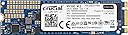
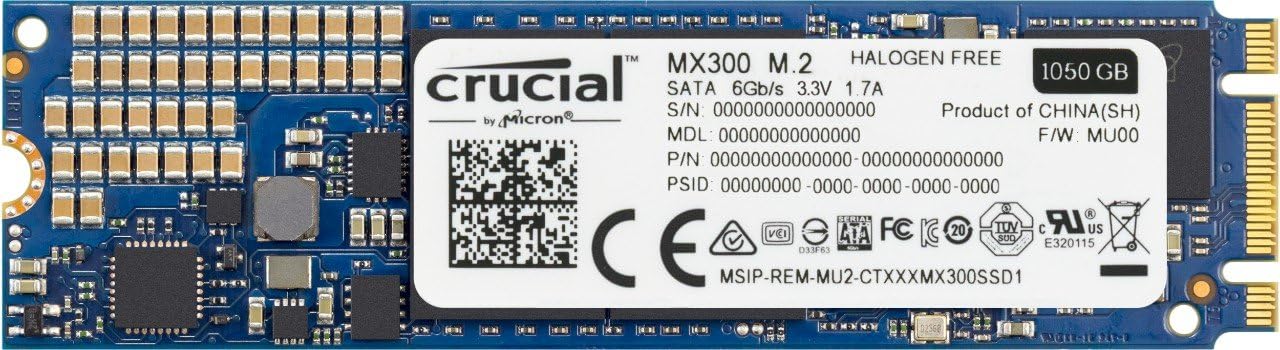
The Crucial MX300 CT1050MX300SSD4 is a 1TB M.2 2280 SATA SSD featuring Micronโs cutting-edge 3D NAND technology. Delivering sequential read/write speeds up to 530/510 MB/s and random IOPS up to 92k/83k, it offers a powerful, energy-efficient storage solution ideal for professionals demanding speed, reliability, and capacity.


| ASIN | B01L80DH1Y |
| Box Contents | Crucial MX300 1TB SSD |
| Brand | Crucial |
| Brand Name | Crucial |
| Cache Memory Installed Size | 275 |
| Color | Blue |
| Compatible Devices | Desktop |
| Compatible devices | Desktop |
| Connectivity technology | SATA |
| Customer Reviews | 4.6 out of 5 stars 1,825 Reviews |
| Data Transfer Rate | 530 Megabytes Per Second |
| Digital Storage Capacity | 1 TB |
| Digital storage capacity | 1 TB |
| Global Trade Identification Number | 00649528778314, 06953041213837 |
| Hard Disk Description | Solid State Drive |
| Hard Disk Interface | Serial ATA-600 |
| Hard disk description | Solid State Drive |
| Hard disk interface | Serial ATA-600 |
| Hard-Drive Size | 1 TB |
| Hardware Connectivity | SATA 6.0 Gb/s |
| Installation Type | Internal Hard Drive |
| Item Weight | 0.02 Pounds |
| Manufacturer | Micron |
| Manufacturer Part Number | CT1050MX300SSD4 |
| Media Speed | 510 Megabytes Per Second |
| Model Name | Crucial MX300 M.2 |
| Model Number | CT1050MX300SSD4 |
| Network Connectivity Technology | SATA |
| Number of Items | 1 |
| Product Warranty | 3 year limited warranty |
| Read Speed | 530 Megabytes Per Second |
| UPC | 771591313182 649528778314 |
K**A
FAST, reliable, and horrendously inexpensive for the QUALITY you get
Windows 10 installed in less than 10 minutes. Immediate access to media libraries throughout Adobe CC, especially Premiere Pro. Not the fastest one out there, but for that price? It goes right into your m.2 port. It has a quality feel to it, nothing shaky or too sturdy. Fits perfect and safe. Enabling it as a system drive took me like 5 seconds. My computer switches on in 10seconds and I open chrome with 30 tabs loaded from memory 2 seconds later. Want something more? You can pay over 200quid for a new generation Samsung drive. This one does the SSD job perfectly and is cheap as chips for the storage. I would recommend it to any user, even in a professional environment. No need to overpay.
H**Y
A decent drive for the money
Be aware that this is a SATA mode m.2 drive, and thus performs like a normal SSD- hundreds of megs per second rather than gigs as you'd expect from an NVMe drive- and no crazy queue depth etc.. However, that's what I wanted, as it's a lot more affordable than my screamingly fast NMVe boot drive- I just wanted a second m.2 to use as a Steam drive. This is a good quality drive for a sensible price, from a reputable manufacturer. Crucial are often a safe bet, and this is a perfectly decent bit of kit. Edit: Forgot to say- don't install the "free" Acronis software. It'll clone your drive, but it's really hard to get rid of, and may brick your Windows install in the process, or do something more subtle like mess up restore points capabilities. Google and you'll see what I mean. There are loads of other good free choices, like the Easus and AOMEI and even the Macrium stuff, as well as good open source options (like nice Linux minidistros with various software, or even good old "dd"). Use anything but the Acronis software, if you want to clone an existing drive.
E**R
works with MSI GL62
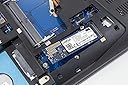
Installed into am MSI GL62 6QD with no problems. Had hoped to clone the original hard drive onto it but found that that failed with the Acronis software despite trying different methods. In the end I used the MSI recovery software and put the operating system on this drive and the rest of the stuff on the other hard drive( which I also replaced with an 'old' ssd that I had from my previous laptop). Now boots in seconds and only slowed down by the time it takes to enter my pin to login to windows.
P**F
but good value for the money
The SSD it self works OK, I have made an upgrade from a 240GB Kingstone, it is not as fast as my previous one, but good value for the money... The software side, is the reason of not giving 5 stars... a piece of paper is included in the package with a registration number for Acronis True Image , but instead of asking for this serial number, the software is asking for a very detailed and personal registration, at the end I gave up and re-installed everything from scratch.
S**F
M.2 ssd
Incredibly fast once I had figured out how to go about convincing the bios to accept it, Am using an asus z170 pro gameing, already had a lite-on 64gig in the m.2 slot but too small, fitted the Crucial and the bios recognised it fine but the bios refused to boot into windows, several hours later after much roaming on the net it would appear that M.2 sdd and Pcie have to be initialised and format for the bios to accept it, borrowed an M.2 to usb3 adaptor and initialised then format and cloned with acronis, all went well but once refitted it again refused to go past bios, drive inactive, used a recovery disk at start and repaired the clone, then all was well, and it flies! very happy! Once initialised and formatted in an M.2 to usb adaptor I could have just reloaded everything on sdd but! time consuming! I did at one point load windows via a dvd just to prove the drive was fine, I think my problem with using acronis is there was a c: drive already so it must have marked it as inactive? do not believe there is anything wrong with acronis, very fast cloneing, approx 20mins for 149gbs on hhd, fiddly but well worth the effort, you do not of course get these problems using normal sata ssd in your case, and other board manufacturers may not have this stumbling block with M.2 ssd? would have helped tremendously if a note on how to initialise and format off the board was included, Very impressed with it though, A++++
A**H
All good
Installed the 275gb m.2 drive into a dell inspiron 7559 laptop. Just received it today and it comes with acronis software to clone the drive and it's not worth using. I did the full auto clone feature. It restarted and loaded it's own program before windows to clone it all. I left it alone, came back and the laptop was off so I assumed it was finished. Switched it back on and it loads a black screen in windows and eventually crashes with a bsod and a 'critical process died' message. So I don't recommend using the software the ssd comes with. Trying 'EaseUS todo backup' software at the moment. The ssd drive itself seems good. I had a Samsung 850 250gb m.2 drive before I forced a cup of tea onto it and it said goodbye. 1 small sip/drip and that was that. The Samsung was about ยฃ68 when I bought it months ago but it's too expensive now so this is why I've went to Crucial. I will update this when I've more to talk about...
J**H
Great drive no problems
No problems so far, easy installation and works straight away. The more accurate size of the 1TB drive is 977GB so if you were hoping for a little bit more space than that well you're out of luck. There is one warning I have to say about the drive and that is when you plug it in it will automatically disable 3 SATA ports on your motherboard so if you already have more than 3 hard drives or dvd drives plugged in you're gonna have a bad time.
J**H
Usually good, but failed within 6 months.
Arrived in good time, worked well for a while, but didn't last 6 months before it got a fatal error without any prior hints at the drive failing and is now just a stick of metal.
R**L
Perfekt auch fรผr MacBook Air.
Da ich seit vielen Jahren sehr gute Erfahrungen mit SSDs aus dem Hause Micron habe und auch schon einige MX300 in diversen Macs verbaut hab, war nun auch mal mein altes MacBook Air mit einem Update dran. Zusรคtzlich zur SSD wird im 2011er MacBook noch folgender Adapter benรถtigt: Kalea Informatique Adapter M2 (NGFF) auf MacBook 2011 โ fรผr Einbau einer SSD M2 anstelle einer SSD mit 6 + 12 Pins in einen Mac Fรผr viele andere MacBook-Generationen sind ebenfalls passende Adapter im Handel erhรคltlich. Die SSD kam erfreulicherweise bereits mit der aktuellen Firmware M0CR060 mit Stand vom September 2017. Ein Update konnte ich mir also schon mal sparen. Mit dem Adapter passt die SSD einwandfrei ins MacBook und sie wird auch direkt beim ersten Start anstandslos erkannt. Nach dem anschlieรenden Zurรผckspielen des letzten TimeMachine-Backups lief alles wie am ersten Tag. Nur deutlich schneller. Die Original-SSD des 2011er MacBooks ist nรคmlich leider keine Rakete, sondern trotz schnellerem Controller aus heutiger Sicht unnรถtig auf SATA-3G beschnitten worden. Damals war es wohl eine Preis- und Verfรผgbarkeitsfrage, heute eher eine unnรถtige Beschrรคnkung, die mit der Crucial MX300 glรผcklicherweise wegfรคllt. Die um das 2-3 fach hรถhere Geschwindigkeit merkt man in nahezu jeder Anwendung. Trim kann sehr einfach รผber die Konsole mit dem Befehl "sudo trimforce enable" aktiviert werden. Das Tool DriveDx bescheinigt der SSD einen tadellosen Zustand, was bei Neuware wenig รผberrascht. Der BlackMagic Disk Speed Test zeigt beim mit FileFault verschlรผsselten Drive immer noch sehr ordentliche 430MB/s. Das ist etwa genauso schnell wie die MX300, die als 2,5"-SATA-Drive seit fast 2 Jahren in meinem 2013er iMac werkelt. Bin sehr zufrieden. Klare Kaufempfehlung!
U**R
Working well in MSIGT83VR M.2 Sata slot.
Very good fast ssd ,installed in MSIGT873VR without any problems.
M**E
Ottimo
Ottimo. Prestazioni eccezionali
B**B
In Today's Upgrade Landscape, It Doesn't Get Any Easier Than This
Okay, the first thing I have to say is that adding this to my computer -- an ASUS ROG GL752VW-DH71 17.3-inch Gaming Laptop (Intel i7 2.6GHz, 16GB DDR4 RAM, 1TB HDD, GTX960M 2GB Graphic Card, Windows 10) -- and having it take over the boot drive responsibilities from the existing hard disc drive (HDD), using the included Acronis software was as easy as easy gets. I have read reviews, blogs, articles, and forum accounts of people who bad-mouthed the included Acronis True Image data migration software. The varying accounts and approaches had me braced for the worst. I searched high and low for any and all information I could find. Forewarned is forearmed, right? I had several tabs at the ready on another laptop, just in case I ran into problems. Some praised other software; some of them found that other software simple to use, while others jumped through all kinds of hoops. My research and preparation took HOURS and HOURS of my time, but, not knowing what to expect, prepared is good, right? What a waste of time it turned out to be to prepare for troubles other people had in doing that which was ridiculously easy for me. I don't know why this was so easy for me, yet so fraught with peril for others, but here's (more or less) how I did it: - Before starting, I assigned a new drive letter ("O", for "optical") to my DVD/CD drive. The computer comes with the HDD set to "C" and the DVD/CD set to "D" -- but I knew I was going to want my new Crucial M.2 SSD to be my new drive "C" and the HDD renamed to "D," so I just got the renaming of the DVD/CD out of the way right off the bat. (Clearing the decks, so to speak.) - This MAY or MAY NOT have had something to do with my ease of setup, but I'm going to share it, just in case: I had been playing with the notion of using BSD or Linux instead of Windows. In order to try out some "live" CDs, I had changed a few BIOS settings: 1) Security menu -> Secure Boot: disabled 2) Boot menu -> Fast Boot disabled 3) Boot menu -> Launch CSM enabled - Two screws (requiring a very small Philips screwdriver) undone, and I was into the laptop case. The Crucial M.2 SSD slid into the connector with little resistance. (Be CAREFUL: if it seems hard, take a closer look and make sure you don't have the card upside down. There are two notches in the card connector end, but only one corresponding positioner in the motherboard connector; it's easy to make the mistake of trying to put it in the wrong way.) Use one of the provided screws (and an even smaller Philips driver) to screw down the other end of the SSD card to the Motherboard standoff. (It will be obvious.) PROPS to Crucial for including the screws! Another popular brand (Samsung) couldn't see fit to package a few cents' worth of screws with their $150 card. (The argument that the computer should have the screw already is without merit. I've been repairing and building computers for thirty years and have almost NEVER found an extra screw in a motherboard or case; the fasteners always come with the components, if at all.) Crucial even threw an extra one into the bag, just in case you lose one (which would be easy; they are very small). Warning: if you DO lose one INSIDE your laptop, you're going to want to find it. Loose metal objects bouncing around working electronics can end in disaster.) * Sorry for the digression, but here's something I did that helped with getting the screw in: BEFORE inserting the Crucial M.2 SSD card, I used a tweezer to hold the screw atop the standoff, then turned the screw in, just about 1ยฝ threads. Then I inserted the card firmly into the slot and lowered the end over the screw. It would not pass the screw head, so I *carefully* loosened the screw just enough for it to tilt a bit, but not allowing it to fall away. The card dropped down; I then carefully stood the screw straight back up, then tightened it down. - Turned on the computer. Opened Windows' Computer Management -> Storage -> Disk (sic) Management. Windows showed the new drive, unformatted, ~488 GB. (Not 525, but get used to it. Manufacturers have been playing fast and loose with capacity claims for some time now. They conveniently use metric standards for marketing purposes, while old sticks in the mud like me understand that a KILObyte, in computers' binary shorthand, means 1,024, NOT 1,000. Then there's overhead for whatever may be preinstalled... Tradition be damned; salesmen point to the difference between a GB and a GiB, while users are left wondering why their new storage devices don't show the same numbers onscreen that the shiny packages show... but I digress.) So, I was pleased as punch to see that Windows recognized the new Crucial M.2 SSD -- and was calling it Disk 0 (as in "zero"). Very promising! (For the uninitiated, we old C programmers, users of the foundation language of modern programming, start counting at "0" -- not "1." Could this be an indication that making this the boot drive was going to be a bit easier?) * At this point, Windows was showing me the option to format the drive, but I DISREGARDED it, choosing to give Acronis the chance to work with a clean slate. Preformatting it might have made the process more complex. (Not knowing how Acronis worked, I couldn't know, but, generally, when formatting any drive, SSD, HDD, or floppy, starting in an unformatted state is less likely to bring out potential bugs in formatting software.) I exited the Windows' Computer Management program. - Following the simple instructions included with the Crucial M.2 SSD, I downloaded the Acronis True Image program, installed it, and entered the activation serial number (plainly printed on the back of the instructions) and e-mail address (yes, but I gave them a special e-mail address I only check if I HAVE TO). I did NOT have to verify the email address, which was nice. - Installing and running Acronis took a few minutes. I chose the "clone drive" option to copy the HDD contents to the SSD. Being a new computer, there was less than 50 GB worth of material to copy. Nonetheless, I like to keep whatever control I can over how my computer is configured, so I didn't simply accept the "trust me" options. I chose to check the settings and I think what I used is what the defaults would have been, anyway. When the cloning was done, I rebooted the computer, and Windows loaded up FAST. Could it be...? I went back into Windows' Comouter Management -> Storage -> Disk Management and, lo and behold, the newly cloned Crucial SSD, still "Disk 0," was now drive "C" and the HDD had been rename to drive "D." All automatically. I did nothing to make that happen. Curious to see what BIOS thought of the new hardware, I Restarted the computer, holding the [Esc] key down until I was presented with a menu of boot options. There, at the top of the list, was the new Windows boot partition on the SSD. In 2nd place was the old Windows boot partition on the HDD. Also on the list were the HDD device and the DVD/CD drive. I chose to enter Setup and look further in the Boot menu screen. There I found confirmation of the boot choices I had just been presented. I quit the BIOS utility and let it boot -- automatically, into Windows, using the new Crucial M.2 SSD, all without my having to do anything to make that happen. I am amazed. Ever since the onset of Plug and Play so many years ago, this was easily the best example of automatic configuration I've experienced. I've timed the boots a few times, now, and I'm getting a login screen in 12 - 13 seconds from a "cold" (non-hibernating) start. After logging in, my desktop appears in 2 - 3 seconds. (If it was in hibernation, the desktop appearance time is immeasurably fast; visually instantaneous.) The performance on the SSD is everything you've already read about -- just incredibly fast. The performance improvement you'll get out of this SSD almost eliminates the lag introduced by code bloat of new software. (Seriously, almost EVERYTHING is measured in tens or hundreds of MBs these days.) Even if you don't have loads of RAM, the swapping to and from an SSD happens so much faster than through a hard drive, even the most sloth-like software works at a good pace. This was a GREAT investment to have an SSD, in general, but the installation of this particular Crucial M.2 SSD and bundled software, in particular, made the upgrade painless. I highly recommend it.
S**Y
Nice.... very nice.
Got the 275gb m.2 ssd from amazon global store as it was cheaper than the indian sellers who where listing it at ridiculous prices. Had a bit of a tough time getting the ssd to be detected in the BIOS of my Asus ROG GL552, but finally got it working as the boot drive. The ssd is fast as expected and OS loads in an instant.
Trustpilot
4 days ago
1 day ago