Buy anything from 5,000+ international stores. One checkout price. No surprise fees. Join 2M+ shoppers on Desertcart.
Desertcart purchases this item on your behalf and handles shipping, customs, and support to USA.
🖨️ Print Bold. Print Brilliant. Print Boundless.
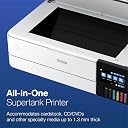
The Epson EcoTank Photo ET-8550 is a wireless all-in-one wide-format inkjet printer designed for professionals and creatives who demand lab-quality, borderless prints up to 13x19". Featuring a cartridge-free EcoTank system with 6-color Claria ET Premium inks, it delivers vibrant, sharp photos and graphics at a fraction of traditional ink costs—up to 80% savings and enough ink to print for 2 years or 6,200 color pages. Fast 15-second 4x6" photo printing, duplex capability, versatile media handling including CDs/DVDs and cardstock, plus a 4.3" color touchscreen and mobile app control make it a powerhouse for home offices and creative studios alike.


| ASIN | B08R5M2HDH |
| Additional Printer Functions | Copy, Scan |
| B&W Pages per Minute | 16 ppm |
| Best Sellers Rank | #2,032 in Office Products ( See Top 100 in Office Products ) #6 in Ink Tank Printers |
| Brand | Epson |
| Built-In Media | EcoTank Photo ET-8550 all-in-one, Quick Setup Guide, Power Cable, CD-ROM (User Guide, software), 1 bottle of 552 Photo Black (70 mL), 1 bottle of 552 Black (70 mL) and 1 bottle each of 552 Cyan, Magenta, Yellow, Gray (70 mL) (4) |
| Color | White |
| Color Depth | 48 Bits |
| Color Pages per Minute | 12 ppm |
| Compatible Devices | PC, Smartphones |
| Connectivity Technology | USB |
| Control Method | App, Touch |
| Controller Type | iOS, Android |
| Customer Reviews | 4.1 out of 5 stars 2,365 Reviews |
| Dual-sided printing | Yes |
| Duplex | auto |
| Hardware Interface | USB |
| Ink Color | White |
| Is Electric | Yes |
| Item Dimensions D x W x H | 29.8"D x 20.6"W x 16.9"H |
| Item Type Name | Inkjet Printer |
| Item Weight | 24.5 Pounds |
| Manufacturer | Epson |
| Maximum Copy Resolution Black and White | 1200 x 4800 DPI |
| Maximum Copy Resolution Color | 5760 x 1440 dpi |
| Maximum Copy Speed Black and White | 16 ppm |
| Maximum Media Size | 13 x 19 inch |
| Maximum Print Resolution Black and White | 5760 x 1440 Dots Per Inch |
| Maximum Sheet Capacity | 100 |
| Maximum print Resolution Color | 1440 Dots Per Inch |
| Model Name | EcoTank ET-8550 |
| Model Number | ET-8550 |
| Model Series | ET |
| Other Special Features of the Product | Refillable Ink Tank |
| Output sheet capacity | 50.0 |
| Paper Size | 13 x 19 inches,11 x 17 inches, 8 x 10 inches, 5 x 7 inches, 4 x 6 inches, 3.5 x 5 inches,A3,A4,Legal,Letter,Executive,A6,Half Letter |
| Power Consumption | 150 Watts |
| Print media | Glossy photo paper |
| Printer Connectivity Type | USB |
| Printer Output Type | Color |
| Printer Type | Inkjet |
| Printing Technology | Inkjet |
| Scanner Type | Photo |
| Special Feature | Refillable Ink Tank |
| Specific Uses For Product | Home |
| UPC | 010343952492 |
| Unit Count | 1.0 Count |
| Warranty Description | 1-year limited warranty |
| Warranty Type | Limited Warranty |
G**N
The most satisfying ink jet printer I've ever used {w/Update}
The TLDR for this is the review title. {UPDATE}. It's still satisfying! It cost about $200 US more than I wanted to pay, and I tried mightily to find something else that was cheaper! But in the end, this was the only printer that I could actually say met my needs to support my serious "artsy" amateur photographer large print habit. I am pleased to say that it is worth every cent. I've had it about a week, and I've printed a LOT of photos (Maybe 30, or so), just to test it out. And the ink tanks aren't even down to the 25% used level. All printer Ink is expensive, but the way the Epson Ink is packaged and sold, it is projected to save the typical user about 80% in ink costs over the life of the printer. I believe this is a reasonable estimate based on my current usage, and I haven't even started my real printing yet. The print quality is excellent. Is it as good as one of those giant commercial grade printers? Probably not. But when I used good Epson and Canon printer paper, I thought it was as close as I could reasonably get for something that costs less than $1000 US. To be honest, I also printed on cheap Kodak paper, and while it wasn't quite as sharp and the color wasn't quite as accurate as the premium paper, it was still more than adequate, GOOD, even. Certainly good enough that Granny, Gramps, and Mom are not likely to notice. So cheap paper is not off the table for some print jobs. It's reasonably quiet and well built. My office area is right below my bedroom and I have no fear of it being heard up there. It's big and heavy and doesn't make the table it sits on wobble; it's rock solid. I like the large color LCD screen. I haven't had to clear any paper jams yet but access for clearing them is from the back and very easy to get to. The only negative I've encountered is that the auto select for which paper tray to use is unreliable. I've found that manually selecting the paper tray reduces the amount os swear words I use during the day! Go with the manual tray selection, or your kids will learn words you don't want them to know. I tried the scanner once, it works well, but is no better than any other all-in-one printer. I suspect all the printers of this type use the same type of scanner, possibly from the same manufacturer. You won't hate the scanner, but it's not going to stand out in your mind either. This is the perfect All-In-One printer for serious photographers on a budget who need to use paper that is 13 inches wide. If you can get by with standard letter size printer paper there is an almost identical printer that is a bit cheaper, but delivers all the other features of this one. (ET-8500) I am VERY happy with this printer, and I would buy it again, and I would recommend it to a friend. {Update}. 1 year after purchase. I'm still on my first set of ink bottles. After my initial rush of printing, I calmed down some, and I now print a photo, say, once every week or so. My wife will print a few color spreadsheets and documents with it roughly every two weeks or so. I will probably use OEM ink when I do need to buy more ink. I'm not sure how to tell if the maintenance/overflow tank is full though. I hope the printer will tell me when it needs to be replaced. My problem with auto tray selection has been resolved, not sure why, or how, but I've gotten used to manual tray selection, and don't feel like changing my workflow. {END Update}
C**F
Epson finally did inkjet printing right
Congratulations Epson I don't hate you anymore. I have had Epson inkjet printers for about 30 years. For my work as an artist I usually buy this size wide carriage 13x19. However I have never ever advised that anyone else I know buy a color inkjet printer unless they absolutely need one. I have two black and white laser printers that I adore because they just work, lightning fast, the toner is cheap, the print quality is excellent. My parents for instance have against my advice had a couple of color inkjets because they very occasionally want to print in color. Misery. The ink cartridges are always empty the heads are always clogged and the thing just refuses to print in black and white even though the black cartridge is full but one of the color cartridges is empty. My old Epson r2880 has eight tiny little cartridges and one or two of them are ALWAYS low or empty and they are crazy expensive. The cartridges are also chipped so that you can't use anyone else's aftermarket cartridges, and there's a whole industry dedicated to getting around these issues. In my opinion it's a terrible business model for a printer company because you make your customers hate you, go to great lengths to buy cheaper ink from other companies, and it all discourages them from using the printer and doing a lot of printing and buying your other supplies like paper. Well I read an awful lot about these new tank style printers and how they could potentially solve most of these issues. And I have to say I think they have nailed it. This printer is an absolute joy to use and you just look for excuses to print anything. The gloss prints on Epson ultra premium paper are simply the finest gloss prints I've ever seen. The ink tanks are huge and transparent so you can tell how much ink is in them and the ink lasts a way long time and it's really not that expensive. The ink bottles are actually kind of brilliant you can't put the wrong ink in the wrong tank cuz the nozzles are different shapes and they don't drip ink at all or anything. You can top them up at any time it's beautiful. Turns out you really don't need 8 or 10 colors to print gorgeous luminous prints. I am happy to buy Epson brand ink under these conditions. I mean I could still buy a different company's ink and put it in these tanks but why would you?I've always liked Epson photo paper and use it almost exclusively. I actually tell my kids to go and use the printer all they want. My neighbors too. If there's a print you think you might like print it for goodness sake! Print it larger! Now see Epson: THAT is a business model. I had trepidations as this is a die ink printer. Everyone says artists should "use pigment inks for archival longevity". I've decided I just don't care. Pigment inks tend to clog. They actually don't look that good on glossy paper did anyone ever tell you that? They need a special varnish coat in order for the gloss to pop. If one of these dye prints fades in 20 years you know what it's digital files, I'll just go print the darn thing again it's not that expensive on a printer like this. I even kind of like the Epson print layout software, even though it looks like it was designed in the Windows XP era, and the scanner and it's software work quite well. I've had Epson flatbed scanners also for years and this one being built directly into the printer is just very useful. The touch screen also works well and you can quickly run off a copy which I've never really been able to do before, because I've had a separate printer and scanner and it's just too much of a pain to fire them both up and get on the computer. Also the wireless print function is really great. I can print a 4x6 from my phone in a few clicks, or a PDF from my tablet, what have you. There's even a special paper slot just to hold 4x6s in addition to other paper, gloss full sheets in the rear feed, plain paper in the bottom tray. They really have kind of thought of everything with this printer. If I need to do some serious black and white printing of text I will still use the laser. On cheap copy paper the inkjet looks a little fuzzy and is actually not waterproof. But if I didn't have a laser I wouldn't go out and buy one because one printer is better than two. Just use inkjet plain paper and you'll be set This is a printer I can happily recommend to basically anyone, and I have never been able to say that about a color ink jet before.
D**R
Defect with tray 1 on all units and how to fix "out of paper" & "paper jam"
There is a critical engineering error on tray one. It will cause your tray one to indicate that there is no paper or continually say that there is a paper jam. There are tons of posts about this issue on Reddit. I found one and after reading it found that there is a pretty simple issue. Let's start with the problem, then the solution. You will have this error sooner than later on this printer. Epson knows about it but for some reason has not fixed it even though it fix is super easy. It is so common that we got to printers in a row with the same issue. On paper tray one, you put the paper in and use these little blue slides to adjust and hold in place. Then you put the tray into the slot and when you try to print it tries to pull that paper up to the big rubber roller. This is where the problem is. The bottom of the tray is pushed up by two springs which are two fragile to firmly push the tray where it needs to go. So the printer tries to grab the paper but it grabs nothing and thinks that it is empty or in some cases it tries to grab the paper and gets it partially but not well enough so it calls it a paper jam. How do you fix this? Take paper trays one and two out. Turn the unit over. On the bottom you will see the black roller and two little black rollers and you will see the two springs that were talking about. Take the two springs out with tweezers. Make sure before you do this that you have bought two G2 gel pens. They sell them at Costco in 10 packs. The spring that is in the gel Pen is the perfect size to fit inside of the spring that came out of the printer. Put one gel spring inside of each of the printers springs and reinstall them using the tweezers. It takes about 30 seconds to take the springs out and about 7 or 8 minutes to put them back in simply because it is hard to get them aligned. But with a little bit of patience you will get them back into the unit. That's it, it is fixed. The additional firmness of the G2 gel pin springs will ensure that the tray is pushed up firmly so that the big roller can grab your paper. Not sure why Epson is not just replace the springs with a firmer spring, but if you run into this issue you know that the cost to fix it is simply to pens. The fact that it is such an easy fix and Epson has not put into place that easy fix made me give this printer a one star. Having said that, it is a great printer otherwise.
P**R
A great printer, economical ink, and 13” x 19”
I have used this printer frequently for a year. Overall, it works well and produces both b&w and color prints I sell in a gallery. I have used an assortment of high quality papers from Epson, Illford, and Red River. Even after a mishap with a paper being feed through wrong side up causing a mess on the rollers, a few cleaning cycles cleared them up. If you are using thick paper make sure you have the thick paper setting turned on. I didn’t want a scanner but it has come in handy on more than one occasion. Primarily I make 13” x 19” prints, the ink tanks are great and my costs have gone down compared to my Canon Pixma Pro which uses a lot of ink. The price of ink for this printer is very reasonable. Setup was easy and no issues with using the printer. Highly recommended!
T**E
TERRIBLE WOULD NOT SUGGEST BUYING
I just received my printer a couple of days ago. So far so good. Mind you I am going on 85 years old and was able to just follow the directions and get it done It took me 2 1/2 hours to set it up as I had to remove all the tape, fill the ink cartridges, do the alinements, figure out the trays and what they went to. Clean up all the garbage and get ready to install the software. You cannot not have your computer connected to the printer while you are doing this. Just follow the directions and you will be fine. Once you have followed all the instructions, you can set up your wireless connection or connect through your USB connection. I chose the USB connection. As my last printer was an Epson Stylus Pro Injet 3880, which printed large format paper I was not too thrown by the page inserts. I will have to say that the output tray is very flimsy. But, just be carefull when you push it back in and you will be fine. I love the fact that when you get ready to print the tray comes out automatically. I find that amusing. I do like seeing the ink capacity in the front of the printer. I had been using my husbands HP All In One so I was used to the front panel and touch screen. The scanner worked perfectly except it took me awhile to work through the software. I did run a print using the high setting, photo luster paper and it created a beautiful print. However, because I work in graphics I need to calibrate my monitor and check the print color to see if I need to reduce the red a little in my On One print settings. I have not printed on my 19x20 sheets yet, so will get back later when I do all my adjustment for quality and then do those prints The paper capacity is fine for my everyday printing, although my epson 3880 could use alot more at a time At this point, I am very happy with what I see. WELL NOW THAT I HAVE BEEN TRYING TO USE THIS PRINTER FOR EVERYDAY PRINTING OR PHOTO PRINTING I CANNOT FIGURE OUT WHICH CASSETTE TO USE. I HAVE PUT PAPER IN BOTH THE BACK FEEDER AND THE CASSETTE @ 2 AS I CANNOT FIGURE OUT WHICH CASSETTE IT IS GOING TO PRINT FROM I AM GOING TO SEND IT BACK AS I CANNOT NOT REACH ANYONE AT EPSON CONCERNING ANY ISSUES. ALL I GET IS EMAIL MESSAGES ASKING ME DIFFERENT QUESTIONS OF WHICH I HAVE ANSWERED EVERY TIME. I CANNOT FIND A PHONE NUMBER ANYWHERE SO I CAN TALK TO SOMEONE. I HAD AN EPSON STYLUS PRO 3880 FOR 13 YEARS BUT FINALLY HAD TO REPLACE IT. WELL QUESS WHAT I REPLACED IT WITH THIS ONE. UNLESS YOUR AN EPSON TECH AND HAD BUILT THIS MACHINE I WOULD LOOK ELSE WHERE. SOOOOO SORRY I LEFT A POSSITIVE REVIEW BEFORE USING IT MORE THAN TWO TIMES
H**G
Great results but some caveats in setup and durability
Only had it for a few days but I'll give a first look review and augment later. I have been unable to get it to connect wireless to my wifi, and I'm fairly knowledgeable about setting such things up. I was hoping to connect wirelessly so I could place it on the other side of the room. Instead I've connected with ethernet cable directly to the computer. I could have also connected with a USB cable. You might want to use their suggested setup routine which will walk you through how to install the ink. It has an array of trays accessed from the front. 1. The top tray is called the output tray and this tray willl slide out automatically with your printed result. It's a hard push to push it back into the machine so you should go to the home screen and use the button called "output tray" to have it return automatically, instead of chancing breaking the flimsy plastic by pushing it in by hand. You can indeed push it in by hand but it's such a hard push it begs to break someday. 2. Under this tray is a gray tray labeled "1", which is an adjustable carrier for odd sizes like 5x7 etc. Pull out carefully and return carefully, so as not to break any plastic. 3. The bottom tray, labeled #2, is attached to the flap door you pulled down to reveal all these trays, so pull it out to install your letter size paper stock. This is also where you will find the CD/DVD carrier hidden. Pull out the black tab on the right to get this disc carrier out. When ready to print your disc, place it in this little carrier (push the cd/dvd down to CLICK in this carrier or it will slide out during the process, then shove the thing into the TOP tray which has a little disc picture to tip you off that this is where it goes. You shove it in (forcefully but CAREFULLY) up to the line on the cd/disc carrier and stop there. When you tell the software to print it will take it in and do the rest. Search youtube for a video to show you how to print discs on the epson 8500. - In the top back there is long narrow flap door that you open to pull up a feeder tray for your hand-fed paper etc. If not using this feeder area you can just leave this door flap closed. - There is a scanner accessed by lifting the top door but I have not used it yet. - The big positive is that the print results look outstanding, on both coated paper and disks. - Do not handle like a gorilla but with lightness and sensitivity and it should last at least until its planned obsolescence. Upping to 4 stars for the print results. Would give it 3 1/2 stars for flimsy build and strange tray strategy.
T**U
Prints on many materials with great accuracy
I've just started gathering the things I need to establish a crafts shop, where I plan to sell merch at cons and online. First, I would like to note that I swapped out the ink in the printer for 3rd party ink. If you plan to do this, IT WILL VOID YOUR WARRANTY. I've had great success with the precision colors ET8550 Archival Pigment ink, though. (The ET8550 comes with 1 bottle of black pigment and 5 bottles of dye ink, so it is pigment ink compatible, but unfortunately no sellers on amazon provide pigment ink for this printer since it needs six total colors). If you do plan to use 3rd party ink, fill your printer with that ink and never mix inks. This printer is getting 5 stars from me for its printing quality, and compatible sizes, because that's what I cared most about as an aspiring merch creator. However, do read the rest of this review because there were some parts of it that are frustrating. Pros: - prints on many different materials (sticker paper, cardstock, holographic paper) - prints come out pretty fast for the most part - don't smudge (would depend on your material though) - lines are crisp and accurate to original (won't beat the truecolor series of course, but this are sale-worthy prints) Cons: - 3rd party ink is hard to fill into the printer (see video): if using a syringe expect it to bubble a bit no matter how slowly you fill it up - cleaning out nozzles is ATROCIOUS with ink usage: on first fill, every printerhead was clean except for gray. Gray printer diagnostics had just a few missing bars, but was 90% fine; however it printed lines during a test print I did. So I ran nozzle cleaning, and let me tell you, by the time I got the printer working without issue, it used up 3/4ths of my brand new ink which was full prior to beginning. Not cheap. The worst part is that only my gray nozzle had any problems, but when cleaning the nozzles, the machine will clean and use ink from EVERY tank. If I had known in advance, I would've also gone straight for the power clean, because it suggests you run 3-4 normal cleans before the power clean but those didn't help at all. - can't print on 2.5x3.5 cards directly (3.5x3.5 being the smallest supported size) - borderless printing gets *very* close to the edges-but still leaves a border at least in my case, so you will have to trim prints a smidge. If getting it exactly to the edges is necessary, it might be better to just buy a bigger paper size. - printing duplex won't align the back side with the front side with 100% accuracy. Overall, my biggest complaint was with the ink costs during setup due to a single faulty nozzle. I'm still rating it 5 stars though, because for the week since setup i've done many prints with not a single problem. Highly recommended for people looking to make and sell merch!
R**S
Great quality prints, surprisingly fast and cost-effective.
I ordered this to print a large batch of wedding photos in a variety of sizes, though I had been eyeing it for years for printing my other photos like landscapes. The printer was easy enough to set up and calibrate (although since it has a scanner, Epson could automate the alignment). I threw in some third party paper, selected a color profile, and was up and printing with good color and brightness in two or three prints. I have been printing 13x19's at a rapid pace, and the ink levels have barely gone down. Most of the cost of my prints seems to be the paper, by a wide margin. The print quality appears to be excellent, and an 11x17 with an inch margin only takes about five minutes to print! I have been avoiding borderless prints so far, as I have read that the ink can get on the rollers, and I can batch up smaller sizes onto a full sheet, then cut with a paper cutter. The maintenance tank shows slightly reduced capacity, so I'll be keeping one of those on hand along with extra ink. Wireless connection on Windows was very simple - the utility found the printer, so it was a one click operation. I have noticed that if my network is congested, prints can take a little longer, but I'm sending the full resolution image to the printer (rather than setting dpi and scaling before transmission), so some buffering delay is to be expected. I see that noise level is a recommended topic, and the printer really is quiet while printing, though there are some clunks at startup. Most of the time it's quieter than my laser printer.
A**R
Não compraria novamente
A impressora parou de funcionar com 3x de uso. Simplesmente não liga. A impressão da foto é excelente mas não volto a comprar a marca.
I**S
110 only
110 volts, not compatible with Saudi Arabia’s electric outlets
F**A
La mejor impresora fotográfica de inyección de tinta
Cumplió más allá de lo que esperaba, la calidad de la impresión es muy buena, fácil de instalar y usar, la app para celular es muy intuitiva así como su manejo desde la pc La calidad de las impresiones es muy nítida y viva, ideal para fotografía sobre todo si vas a imprimir un volumen mediano de fotos, ya que en cuanto a su costo beneficio sin duda alguna es de lo mejor que encontrarán
D**A
White screen after selecting the language and manual set up..
Followed the instructions to the T for setting up.. LCD asked if I wanted to set up via mobile App which I ignored. LCD just turned white… switch On Switched Off Many times.. plugged unplugged many times … nothing moves on LCD…. Filled the Ink Tanks … still nothing appeared on LCD.. after few minutes everything switched off… Inks haven’t been charged… Dont know what to do? Any help here?
T**E
Stopped working
Stopped working after a month
Trustpilot
2 months ago
3 weeks ago