Buy anything from 5,000+ international stores. One checkout price. No surprise fees. Join 2M+ shoppers on Desertcart.
Desertcart purchases this item on your behalf and handles shipping, customs, and support to USA.
๐ Elevate Your Display Game: From 4K to 8K, Plug In and Power Up!
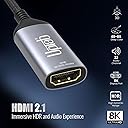
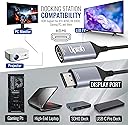
The UPTab DisplayPort 1.4 to HDMI 2.1 adapter delivers cutting-edge video performance with support for up to 8K resolution at 60Hz and 4K at 120Hz, leveraging 32.4Gbps bandwidth and Display Stream Compression. Designed for gamers and professionals, it enhances HDR visuals for richer colors and deeper contrast, while offering broad compatibility across major GPUs and operating systems. Its plug-and-play design ensures hassle-free setup, making it the ultimate upgrade for high-refresh-rate displays and immersive multimedia experiences.


| ASIN | B01B6ZOMIS |
| Best Sellers Rank | #7,243 in Audio & Video Connectors & Adapters |
| Brand | uptab |
| Color | Metallic |
| Compatible Devices | Laptop, Desktop |
| Connector Type | Display Port to HDMI |
| Current Rating | 1.5 Milliamps |
| Customer Reviews | 3.8 out of 5 stars 380 Reviews |
| Finish | Metallic |
| Global Trade Identification Number | 00616320248253 |
| Item Dimensions | 8.5 x 1.4 x 0.5 inches |
| Item Weight | 4.54 g |
| Item dimensions L x W x H | 8.5 x 1.4 x 0.5 inches |
| Manufacturer | UPTab |
| Mfr Part Number | B014E8ZC7E |
| Model Number | B014E8ZC7E |
| Number of Items | 1 |
| Number of Ports | 2 |
| Package Quantity | 1 |
| Power Plug Type | No Plug |
| Specific Uses For Product | PC |
| UPC | 616320248253 616320248239 |
| Unit Count | 1.0 Count |
| Warranty Description | 1 Year Limited Warranty |
| Warranty Type | Limited |
D**T
Works better than expected, pleasing results
Excellent product, plug & play operation for my setup and enables the 4K resolutions as standard, no custom configurations required. I purchased the DisplayPort 1.2 to HDMI 2.0a Active adapter to see if it performed better than the older DisplayPort to HDMI Passive adapter I had on hand with a recently purchased 50" flat panel. While the DP-HDMI passive adapter allowed me to display 3840x2160 resolution, I had to create a custom resolution for the NVIDIA GPU. After each reboot, and often after unlocking the screen saver, the custom setting and passive adapter combination would disable the 4K monitor and revert to the base 1920x1080 resolution, requiring multiple time consuming steps to re-enable the 4K monitor. I deemed the custom resolution configuration as the root cause of the instability since using a 40" 4K monitor with the same DP 1.2 port did not result in the same challenges. To satisfy my curiosity I purchased the Uptab adapter, fully expecting that the results would be the same as with the passive adapter. First I tested the Uptab DisplayPort 1.2 to HDMI 2.0a Active adapter with the 40" Seiki SM40UMP that I have been using with a single DP 1.2 connection @ 4K resolution, swapping the DP 1.2 cable with the adapter and a Redmere 18+ Gbps HDMI cable. As expected, the Seiki immediately switched to HDMI and resumed displaying 4K @ 30Hz*. I powered down, switched monitors and connected the Redmere HDMI cable to the 50" monitor using one of the two 4K@60Hz rated ports. After starting back up I was pleasantly surprised when the computer immediately recognized the 50" monitor as with 3840x2160 resolution, requiring no custom resolution configuration. Even more surprising, is that the Uptab DisplayPort 1.2 to HDMI 2.0a Active adapter exposed an undocumented *second* 4K resolution of 4096x2160 @ 24 Hz on the 50" monitor panel! Of course, I tested the 4096x2160 "true 4K" resolution and it works without issue --- Easter Egg in a monitor! Regardless, I switched back to the 3840x2160 resolution to continue testing the stability of the configuration over the next several days. Using the 4096x2160 resolution added a variable and if instability issues resurfaced, would leave me wondering if the root cause was the adapter/monitor combination or the 4096/adapter/monitor combination. My configuration is: Dell Latitude E6520 i7-2720HQM with Intel HD 3000 IGU** NVIDIA NVS 4200M GPU with 512 MB dedicated video memory** Samsung 1TB 850 EVO SSD; 2TB Seagate ST2000LM007 16 GB DDR3 1866 Mhz ram Dell PR02X E-Port II Plus Docking Station (supplying the 2x DisplayPort/DVI-D ports) - screen shots attached *My current computer configuration will not support 4K@60Hz from a single DP 1.2 port, therefore I cannot test the full HDMI 2.0a 60Hz capabilities of the adapter. **Before anyone points out the fact that the Intel HD 3000 and NVIDIA NVS 4200M GPUs have a documented maximum resolution of 2560x1600, you are absolutely correct --- and I was planning to purchase two 27" 2560x1440 monitors to replace the two 27" 1920x1200 monitors that were failing after 8 years of constant use based on the Dell and Intel documentation. I already had the 50" monitor and decided to see how it would look at the 2560x1440 resolution which led to the discovery that the E6520+Docking Station combination would drive a 4K resolution from a single DP port. Just as Dell's documentation states that the E6520 can only support 8 GB of 1333 MHz ram, it is a well known fact that Dell usually understates the full capacity of the on-board chipset. I've been running 16 GB of 1866 MHz DDR3 ram (2x8 GB DDR3 SODIMM) since mid-2013 without issue and have been watching the prices of the 32 GB 1600 MHz DDR3 SODIMM kits(2x16 GB DDR3 SODIMM) for the past year to see if I can access the full capacity of the Intel chipset in the notebook.
C**Y
seems to do exactly what it claims!
i have only been using this product for a few hours now but allows my 2080ti to send a 120hz 12 bit rgb signal to my new 144hz tv. i honestly wonder if some of the problems the other people are talking about is due to a bad hdmi cable. i made sure my cable has the premuim certified badge on it from the hdmi certification organiztion. i've tried cod:mw, cod:mw3, and battlefield 1 so far and it has performed exactly as advertised. there are other product that claim to do the same thing and i wonder if they are the same product but with a different name on them. however, i never tested them, just this one. and this one works flawlessly! if things change then i will try to update this review. UPDATE 1: after much trying of different setups, i have found that there will be a slight degradation in audio quality with this connection compared to hdmi 2.0 or 2.1. u will mainly notice the subwoofer doesn't hit as hard if u have one connected. there will also be more limited options in your pc sound settings(if u know how to access them). honestly, the improved refresh rate and color depth this adds means that the sound degradation is a sacrficie i am willing to make. UPDATE 2: i exhanged that hisense tv for a smasung one and i am having problems with it. i honestly don't blame this device because samsung has problems displaying all kinds of hdmi signals that other cheaper tv brands display flawlessly with no trouble. kinda ridiculous to have this kind of trouble out of a premuim tv brand in 2024. anyway, if u need this product to connect to a samsung tv then i do not recommend it yet. any other tv will probably be fine. UPDATE 3: i sent the samsung back to costco and got a lg. the device works perfectly with it! samsung is just crap! so, unless u have a samsung tv, i highly recommend this product to get 4k@120fps from your gpu that does not have a hdmi 2.1 port.
D**S
Does not work to the degree it advertises
These thing's are like a mine field to navigate, as the vast majority of them simply lie about their capabilities... Knowing that the vast majority of their customers are likely only dealing with 1080p signals, maybe some at 1440p... and a few with 4k @30... Yet they boldly claim that the device can deal out 4k @ 60hz... which again, the vast majority cannot do at all. This one will try, as you'll get an initial image, but it will then go off, then on, then off, then on... as it simply does not have the throughput for all of that data. Try to use it with an Oculus, and basically nothing. The headset will be detected with the computer expecting it to work, but all you'll get is a black screen inside... Maybe a faint hint of an image attempting to begin, but then back to black. I tried it with a Lenovo Thinkpad @ 4k 60, same results... Same with 3 HP laptops, a Dell, and a Toshiba as well... It will work @ 4k 58Hz... but not 59 or above... and I'm guessing that the closer you are to 60, the more likely you will drop a ton of frames in a major dump every now and then... So 4k 30hz is the MOST I'd say this thing can handle. So it will work for Bluray players, DVD, HD set top boxes, etc... but don't attempt to use it on a high res PC setup for ANY reasons... It is not suited for this AT ALL... despite being clearly labeled in all meaningful ways and places as such. It's all lies. The device is likely quite capable in some regards, lower HD resolutions specifically... But that isn't what I bought it for, it isn't advertised as being limited in such a way.... and as such, for my needs and given it's item description, I feel 1 star is actually quite generous.... as it is a $30 item which does absolutely NOTHING in this case.... nothing at all. Other than add a ton of time to resolving this issue.
T**R
It works, but not so well
I bought it for GTX 1080 Ti and LG C9. The adapter works, I've got a 4K 60Hz RGB 10bit signal (when 120Hz is applied, it automatically switches to YCbCr422), but it heats up very much, after 20-30 minutes it heats up so much that the signal begins to disappear for a few seconds every couple of minutes. To use it for a long time, you will have to use active cooling.
N**L
This device works as described. No complaints.
So far so good. Was able to get my Samsung 40" 6500 4k tv displaying 60fps/60hz through my Radeon R9 Nano with this converter. The email UPTab sends it pretty helpful. Here it is (some links removed): Here are some Tips and Tricks for using your new DisplayPort 1.2 to HDMI 2.0a Active Adapter 4K@60Hz. Many TV manufacturers (Sony, Visio, LG, Samsun) are labeling their HDMI ports as 4k at 60Hz which are NOT HDMI 2.0 capable. Make sure the HDMI port you are using on the TV is HDMI 2.0 capable and not just 4K at 60HZ capable. HDMI port 4K at 60Hz indicates it is HDMI 1.4 capable of running 4K at 60Hz with color sampling of 4:2:0. Our adapters are full specification HDMI 2.0 and support color sampling 4:4:4 at 4K at 60Hz. * If your TV has marking 4K at 60Hz at the HDMI port, you will need to change the color scheme to 4:2:0 in your NVidia or AMD drives settings then change the refresh rate to 60Hz. * Apple MacBook Pro and Mac Pro โ For now Apple El Capitan doesn't support 4K at 60Hz out of the box. To be able to enjoy 4K at 60Hz on OSX you need to install SwitchResX to force the 60Hz by creating custom resolution. You can download SwitchResX form madrau.com First I downloaded (and purchased) SwitchResX, but you can download a trial that works for 10 days. In El Capitan there is a new security feature called SIP "System Integrity Protection". Unfortunately this prevents SwitchResX from modifying the system files that contain resolution information. But you can temporarily disable "System Integrity Protection" to make changes. Once the resolution has been created and activated, you can turn SIP on again. Disabling SIP requires booting into the recovery partition. You boot in recovery mode by pressing CMD + R when starting up your Mac. Then open a Terminal window. Utilities->Terminal and type the command below: csrutil disable To re-enable SIP once the changes have been made; boot back into the recovery partition and set state to enabled: csrutil enable Now boot to El Capitan and open SwitchResX. Select the TV from the pane on the left. Then select "Custom Resolution". I entered 3840 x 2160 and made sure that the Scan Rate for Vertical was set to 60 hz. Scaling is also possible. Save the changes (by hitting apply, and rebooting your mac.. it will ask you to save). After the reboot you will see the custom resolution added within SwitchResX under "Current Resolutions" for your TV. * Often TV's have 4 or more HDMI ports, but only 1 is suited for "2.0" standard. * Please disable all TV enhancements like up-converting picture enhancements because in many cases this settings will add lag. * On many TVโs you need to turn on "HDMI UHD Color" manually in the settings of your TV under "Picture Options" for the HDMI port to which your pc/mac is connected. * Pleas make sure "Input Type" is set to "PC" or "Game Mode". * Please make sure your device Mini DisplayPort or DisplayPort are version 1.2 or 1.3. * By default some devices have their Mini DisplayPort and DisplayPorts configured for DP 1.1 and you need to change manually to 1.2. * Also it could help when connecting 2 screens, to set the screen connected thru the Adapter as second/secondary screen. * Use an HDMI cable rated for the bandwidth of 4K "4K HDR, 18 Gbps"
M**R
Worked perfectly. EDIT: Lasted 5 months.
I see others saying this did not work for them, for me it worked immediately. I made sure to use a high quality HDMI 2.1 capable cable, even though 2.0 is used here. Instantly had 4K at 60Hz and 1440p at 120Hz with HDR. Used this device with a Samsung UN8000 82" TV and R9 390 video card. 5 months down the road and I've lost HDR, the screen randomly flickers off and back on, and no matter what resolution I select my PC shows that the actual resolution is 4k. So if I select 1440p so I can do 120hz it doesn't work because it's still feeding 4k. Tried different ports on PC and different ports on the TV, no luck.
U**N
Yes, but no (update..Gsync workaround).
This product does in fact convert an HDMI 2.1 signal into a DP 1.4 signal. And it will give you 4k @120Hz, but imo a lack of Gsync support vastly undermines the usefulness of this product. As without Gsync the only time you'll get a stable and consistent framerate is when running games that don't drop below 120fps as you can then rely on traditional Vsync, and a locked 4K @120Hz is pretty rare for any GPU that would need this product to begin with. Also, HDR is finicky so sometimes you'll need to switch from PC resolutions to TV resolutions then back again in the Nvidia Control Panel to reactivate it after it's lost. I did read a review by another customer who claimed to have achieved 4K/120Hz with HDR & Gsync active, but for me the Gsync option completely disappears in with Control Panel while using this product. If Gysnc was actually working for this product it would be highly useful all of the time (instead of just in niche situations) and it would be a godsend. My set-up is a 65 inch LG C9 OLED and Nvidia RTX 2080 TI. Update: I figured out a workaround and now Gsync is up and running. You'll need to connect another HDMI cable to your GPU in addition to the one that's connected to your UPTAB. This will give you 2 active displays. Be sure to select the display connected to your UPTAB as your main display, and go into Nvidia Control Panel and turn on Gsync which will now be visible and available for use. This method is finicky so you may need to make a few adjustments every time you power on your PC, but you will get 4K @120hz with Gsync active. And for anyone that's having issues with black bars on screen while using this device, just go into the Nvidia control Panel under "adjust desktop size and position", check under the scaling tab, and ensure that "display" is selected on the "perform scaling on" drop down menu and this will rectify the issue.
T**E
Excellent Product
Excellent product and works as advertised, but it took some finessing on my part. If you're like me and running a haswell i7 with 4600 graphics (or similar cpu) on a windows based laptop, this adapter will not work out of the box for you. Step one is too make sure you're using the proper hmdi 2.0 port on your monitor/tv. (mine is hdmi 1 port on my vizio tv). Then you'll want to 'search for updates' for your intel graphics. After that open the Intel HD Graphics control panel. > go to display > custom resolutions > set the width to "3840" and the height to "2160" and refresh rate to "60" (**make sure the correct display is selected in the display drop-down menu on the left hand side**) > next you'll want to set the 'Timing Standard' to CTV-RB (VERY IMPORTANT) > finally click add and go back to general settings. Select the resolution you just entered and the refresh rate should be available. I hope this helps!
P**S
... haven't test it in 4k 60hz but is working perfect!
ฮ haven't test it in 4k 60hz but is working perfect!
A**R
Quality product
Very stable product. Did not encounter any glitches hooking my GPU to a 4K TV.
Trustpilot
1 week ago
1 month ago