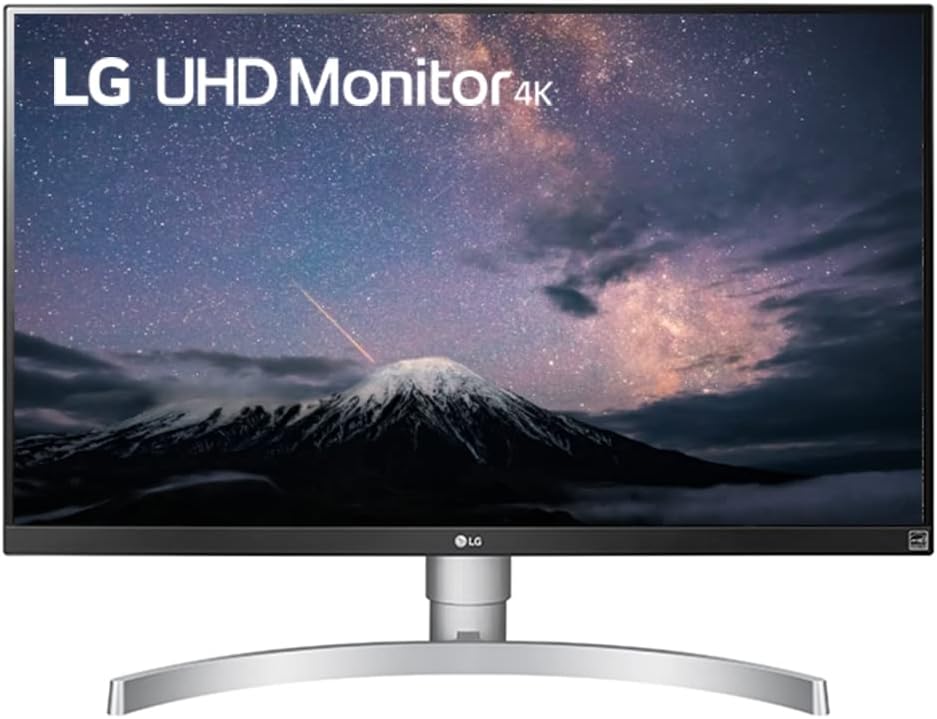
27UL650-W is the 2019 model and not “(2018)” as is currently reported in the title’s description. I was blown away by the picture of a less expensive 2018 4K HDR LG 27UK600-W that was sitting next to several other non-HDR monitors (displaying non-HDR content) in a local BB store. A quick google search led me to this slightly better 2019 LG model 27UL650-W. One website that does a lot of reviews on TVs rated (in Nov. 2018) the 2018 LG 27UK650 as “…the best 4k monitor that we've tested so far”. That 2018 model is currently $449 list price at LG's website. While, the 3x more expensive Acer Predator X27 ($1,799 current Amazon price) was reviewed as the best monitor for HDR. This review is at the rtings website titled, “5 Best 4k Monitors - Winter 2019” (title of article is obviously incorrect and should be 2018). While they give the 2018 27UK650-W comparatively higher ratings, they also report a few disadvantages compared to the Predator X27 (like Local Dimming [none on the 2018 LG], HDR Peak Brightness and HDR Color Gamut not being quite as good as the more expensive Acer Predator X27). Denwereview.com also reviews the Predator X27 along with 2 other 27in 4K HDR monitors with 1000 nits brightness, which are currently slightly more expensive than the Predator by about $79-$100 (article: Best 4K HDR Gaming Monitor for Xbox One X, PS4 Pro and PC [2019]). But having said all that, the 2019 LG 27UL650-W looks beautiful, HDR content looks beautiful and is a great value for the price. I don’t think the 2019 LG 27UL650-W has local dimming either (not mentioned in specs at lg website) or how it compares to the Predator X27, but at $549.99 I’m extremely happy. If I was going to be looking at HDR content all the time (which I’m not), the Predator may be worth the price, but this LG gives me what I need and HDR content looks incredible. I got mine a couple days ago and it looked fantastic out of the box. LG says these are factory calibrated and provides a “Color Calibration Factory Report”. I don’t believe the 2018 model was factory calibrated. The default picture mode is Custom, and looks pretty good when viewing LG (& other’s) 4K HDR video demos at YouTube… but when I found the “HDR Effect” picture mode, I was even more blown away by the astonishing details and colors! This monitor comes with 11 picture modes. I’ve gone into all of them and it appears that other than brightness, the picture adjustments settings are disabled for all modes except Custom. As far I can tell, only the Custom picture mode has completely adjustable/calibratable settings. Not sure how I feel about that but I probably won’t use any other modes than Custom and HDR Effect. Picture modes are: Custom, Vivid, HDR Effect, Reader (?low blue light for night-time reading??), Cinema, FPS, RTS, Color Weakness, EBU, REC709 and SMPTE-C. *** April 7, 2017 Edit: If you are getting a monitor specifically for its HDR capability, check out: displayhdr.org/certified-products/. The site lists VESA certified monitors. Currently, there are VESA 400 (low end, less expensive), 600 and 1000 (high end, more expensive). *** A warning: be extremely careful when pulling the monitor out of it's box. The side and top edges are very thin (1mm?) and you don’t want to potentially damage the screen by wrapping your finger tips around on the screen when lifting it out of the box. Included in the box are a 1.5 m (4’ 10.5”) DisplayPort cable and an HDMI cable I didn't measure. Wish the DP cable was a little longer. I needed 6’ and purchased a different manufacturer’s DP cable and oddly got the message “(Caution) Make Sure to Use Supplied Input Cables” when booting or logging in (with the option to “Do Not Display Again” as the default selection). When I googled that message, I didn’t find anything other information than to just select “do not display again”. Everything is working perfect, so I’m not sure why that message popped up. The supplied disk (with manuals, driver, and 2 apps) asks that you set your default Web browser to Internet Explorer (it didn’t work properly with my default Firefox browser). If you don’t want to change your default browser, just open Internet Explorer and copy the URL from your default browser to the Internet Explorer browser. Two apps come with the monitor: an OnScreen Control and a Dual Controller. If you’re like me, you’ll want to pin the OnScreen Control to your taskbar if only for quick easy access to different Picture Modes and brightness. And don’t bother to install the Dual Controller app unless you have 2 computers and want the monitor to show both of the computer screens. To get maximum color experience with this monitor, go into your graphics card’s Control Panel and, if possible, increase the Output Color Depth setting from 8 bpc (8 bits [of color] per [R/G/B] channel; or a 16.7 million color palette) to 10 bpc (1.07 billion colors). Bottom line, this will increase the number of colors and overall color accuracy. However, I don’t think (*NO EXPERT HERE*) that increasing your setting above 10 bpc will do anything as this monitor’s maximum Color Depth is 1.07B colors. Note: This doesn’t do anything for applications, photos, or videos that don’t support content higher than 8 bpc. And one of the following videos reports that the YouTube videos are compressed to 8 bpc, so it may not help with content there either. For more information about color depth, take a look at a couple YouTube videos: “Color Depth: 10-Bit vs 8-Bit in Under 5 Minutes” and/or “8 bit vs 10 bit Color: What's the Difference?” According to rtings.com: “…it matters [in] HDR content like HDR video games or HDR UHD [4K] movies. [It] won’t matter for regular Blu-ray movies, SDR video game or desktop environment content displayed from a Windows PC. Those are limited to 8-bit color.” And I don’t know if this is true as I don’t see it in the lg.com specs, but according to a couple review sites, this monitor is 10-bit (8-bit +FCR [Frame Rate Control]), which is not true 10-bit color, but is still better than 8-bit. No complaints with this monitor... My only complaint is how 4K resolution is handled in Window 7 (hopefully Win10 is better?). 4K photos and videos are incredible, but everything else is tiny! And as far as I can tell, the only fix is to go into Screen Resolution (R click on a blank portion of the desktop) and click on “Make text and other items larger or smaller” and increase the setting from 100% to 150%. Some applications/fonts still look weird (different than my previous 1920x1200 Dell monitor), but are more tolerable.