Desertcart purchases this item on your behalf and handles shipping, customs, and support to USA.
🎨 Elevate your digital art game—precision, portability, and power in one sleek tablet!
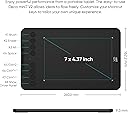
The XPPen Deco Mini7 V2 is a compact, professional-grade drawing tablet featuring 16,384 levels of pressure sensitivity, 60° tilt recognition, and a battery-free stylus. Designed for artists, students, and gamers, it offers 8 customizable shortcut keys and plug-and-play OSU! support. Compatible across multiple operating systems and equipped with a portable 7x4 inch active area, it empowers creativity anytime, anywhere.
| ASIN | B08CDZ5NLX |
| Active Surface Area | 7 x 4 inch |
| Additional Features | 16,384 levels of pressure sensitivity, 60° Tilt Support, 8 Shortcut Key, OSU Support, Portable Design |
| Best Sellers Rank | #6 in Computer Graphics Tablets |
| Brand | XP-Pen |
| Built-In Media | 1 x Deco Mini7 V2 Drawing Tablet, 1 x USB to USB-C Adapter, 10 x Nibs, Stylus, USB Cable |
| Color | Black |
| Compatible Devices | Desktop, Laptop, Smartphone, Tablet |
| Connectivity Technology | USB |
| Customer Reviews | 4.4 out of 5 stars 1,156 Reviews |
| Display Type | LCD |
| Item Dimensions L x W | 6.39"L x 10.24"W |
| Item Weight | 1.2 pounds |
| Manufacturer | XP-PEN |
| Mfr Part Number | CRDeco mini7 |
| Model Name | Deco Mini7 V2 |
| Model Number | Deco Mini7 V2 |
| Native Resolution | 5080 LPI |
| Number of Items | 1 |
| Number of Packs | 1 |
| Operating System | Windows 7 (or later), Mac OS X 10.10 (or later), Android 10.0 (or later), Harmony OS 2 (or later), Chrome OS 88 (or later), and Linux Operating System Windows 7 (or later), Mac OS X 10.10 (or later), Android 10.0 (or later), Harmony OS 2 (or later), Chrome OS 88 (or later), and Linux See more |
| Pressure Sensitivity | 8192 levels |
| Screen Size | 7 inches |
| Software Update Supported to Date | unknown |
| Special Feature | 16,384 levels of pressure sensitivity, 60° Tilt Support, 8 Shortcut Key, OSU Support, Portable Design Special Feature 16,384 levels of pressure sensitivity, 60° Tilt Support, 8 Shortcut Key, OSU Support, Portable Design See more |
| Specific Uses For Product | Drawing, Gaming, Online Education |
| Target Audience | Student, Teacher |
| UPC | 796391004399 |
| Unit Count | 1 Count |
| Warranty Description | 12-month warranty |
Y**E
XPPen Updated Deco Mini7 V2
I’ve been testing out the XP-Pen Deco Mini v2 for a couple of days now, and I’m impressed with how much value it packs into such a compact tablet. Setup was straightforward, I was able to install the drivers quickly, and it worked smoothly on both my Windows laptop and my Android tablet. I also like that it comes with a USB-C adapter, which makes it versatile if you’re switching between different devices. The drawing surface is smooth with just enough texture to feel natural, almost like writing on paper. The pen itself doesn’t require charging (big plus), and it’s comfortable for long sessions. The pressure sensitivity is responsive — strokes vary naturally from light to heavy, which makes sketching and shading feel fluid. Even though this is a smaller tablet, the active area feels generous and accurate. It’s great for note-taking, editing, or sketching on the go without taking up much desk space. The shortcut keys on the side are customizable, which saves a lot of time when switching between tools in Photoshop or Clip Studio Paint. For its price, the Deco Mini7 v2 punches well above its weight. Ofcourse, its not super high end with a screen to mirror your computer or tablet therefore it has no brightness so i am unable to say anything about its color accuracy either. HOWEVER it’s portable, reliable, and beginner-friendly while still having enough features for more advanced digital art. I’d recommend it to students, hobbyists, or anyone looking for a lightweight tablet that doesn’t compromise on performance.
S**E
Great for distance learners. Has a learning curve to it.
We got this for my daughter’s distance learning after I watched her trying to draw and do math on screen with the mouse and thought, “This is ridiculous. There has to be a better way.” So we tried one of those pen mouse things (don’t bother, they suck.) and we’re less than thrilled with the results of that. There had to be something that worked better than that. So I asked a friend of mine who does CAD for a living and she showed me this $500 monstrosity and told me “that’s not that expensive.” Yeah, right. Okay Rockefeller, you do you. But I thought there had to be something in between, so I went to Amazon and fell down the rabbit hole of tablets. Dear Lord, there are a million of them! Apparently, I’m the only person that didn’t know this was an option. After Googling and reading reviews and listening to “White Rabbit” by Jefferson Airplane (it’s become my official shopping on Amazon and falling down the rabbit hole song), I ordered this tablet. No regrets. I will tell you, there is a learning curve to it and you’re not likely to want to fully resolve your mouse with it, although technically you probably could... there are a couple of tips that might help out. Unlike your mouse, you can’t pick up the pen and set it down someplace else on the tablet to “give yourself more space” or whatever. The tablet is like the screen. It’s very much like drawing on paper that way. The spot on the tablet is going to always correspond with that same spot on the screen. As you get close to the edge, you will want to lift up to bring it back down to center, but that doesn’t work. It is where it is, but you do get used to that. Also, you need to make sure if you have Windows, that your Microsoft ink icon is on or the thing isn’t powered up. You’ll need to manually add it to your startup programs, too. In any case, it does the job. She can draw and write with relative ease now. Also it comes with a TON of extra nibs and the pen doesn’t seem to need charging, which is weird, but cool. The tablet itself connects to the computer, but the pen is wireless. What can I say? If you’re the next computer artist version of Picasso, you will probably need something a step or six up. If you’re a parent looking for an affordable option so your kid doesn’t have to try to draw and write with a mouse while distance learning, this simple setup might just be for you.
I**.
Great value for the price, drivers are tricky
Tablet in General. For me, the size of this tablet is perfect, as I have a tiny desk. I wanted it simply as a mouse replacement, and the fact that I can draw with it just adds value to it. It is sensitive enough and quite precise (at least for a software engineer, I'm no graphic designer, so my precision standard is low - keep that in mind). The Pen. Love the fact that it doesn't use battery on the pen; it feels smooth to touch, it is very light and the buttons on it are good although you need to get used to keep the pen still when pushing the "right click" or else it will try to "drag" your object on Windows or won't show the pop menu on Mac. Drivers. I use it on both Windows 10 and Mac OS 10.13 High Sierra. The drivers are a little tricky. There are 2 options in the XP-Pen website: the "official" and a Beta version. The official just sucks, it simply gave me a lot of trouble on both Windows and Mac. I tried the Beta and worked like a charm at first, until I discovered it has a few caveats. I have 2 monitors and in order for the tablet to work on both (and for all the shortcut keys to work) the PenTablet app needs to be running. On Windows, the installation is quite simple although I still struggle with one single detail - when opening certain apps (such as the Task Manager or some Citrix-based applications), the app doesn't seem to work and the mouse seems to freeze - but only from the tablet, cause if I use the computer touchpad, the cursor moves just normally. As a workaround, I simply use the keyboard CTRL+TAB to switch to a different app and the pen works again. On Mac, the installation requires some more steps, provided in the XP-Pen website. You need to follow all the instructions or the driver just won't work. At first I just plugged the tablet in without drivers and seemed to move the cursor, but it only works on 1 screen and there is no way to configure the buttons. One feature I love in both Windows and Mac (Beta driver), you can setup the upper button of the pen (not the "right-click") to make the tablet enter in "precision" mode, which essentially zooms your tablet onto a section of the screen around the current position of the cursor, and then the tablet "focuses" just on that rectangular area, so you have a ton more precision with it. The Free App - ArtRage Lite. All XP-Pens come with a free version of ArtRage. Unfortunately, I installed it on my Mac and even though it looks charming and promising, nothing will show up on the canvas when I try to paint with the pen, or even the touchpad... stickers work, text work, just not the drawing feature, regardless if you chose a pencil, brush, or anything else. I wrote tech support, it's been 2 days and I have zero response. Bottom line is: don't buy it for the free app. Overall, I gave it 4 stars cause it solves my need of replacing the mouse (and take my wrist pain away), because it worked on both of my laptops with also 2 monitors, and because the Beta driver seems to work fine in general (if only by the official driver, I would have returned this pen), although it is certainly not perfect to me (maybe I'll discover an additional setup that needs to be made, if so I'll update this post). I tested it with a few apps on Windows and Mac: MS Office, MS OneNote, Paint.NET, MS Visual Studio .NET, and a few others that are non-drawing related. The pen works fine, even with OneNote that tends to have issues when you use a pen (it tends to think that because you have a pen, you want to draw or handwrite but not to move the cursor) and this pen passed the test. I also read in other reviews that the pen stopped working after a few weeks, so I'll update this review should that ever happen!
Q**.
great for beginners and kids, good enough for higher levels
As of typing this review I've owned this drawing tablet for little over a year now, and hasn't failed me since. Its been used on both MacOS and Windows, gone through a variety of different drawing programs (FireAlpaca, Photoshop, Clip Studio Paint... and even games with drawing features like Jackbox), and been with me as I've improved my art skills. If you're a beginner or a hobbyist looking for a small, cheap drawing tablet, or even a parent with a kid who wants to try out digital art, this is the one for sure. I especially recommend it for parents with kids, this thing can really take a beating. However if you're a more advanced artist, this is good enough to use in a pinch but there's better ones on the market, even by XP-PEN. PROS: - Simple to use. You can adjust a variety of things in the driver program and even have the macro buttons change on a program basis - Great sensitivity. The tablet was always quick and responsive, and I never felt any lag over the full course of the year I had this - Buttons are nice and responsive. There's a nice click to them when you use it. CONS: - No tilt feature. The tablet is a bit limiting in this way, however it's not a massive deal-breaker in my opinion unless you've used tablets with tilt in the past and/or rely on that. I've been perfectly fine without tilt, but I can see this as a problem for some people - Driver program is a bit finicky at times, but still manageable. Once you get it working, it works. Last thing I'll mention is that only in the last month or so I started running into an issue where the button would sometimes send the input twice (i.e. I press the undo button once, but it undos two times). I have confirmed it's only an issue with the tablet, however this is most likely due to how often I used this tablet. This thing got really beat up but is still working perfectly fine!!!
T**R
Great for Beginners, Easy to Learn, Perfect for Newbies of Art with Graphics.
This was a gift from my wife. I'm an old school architect & artist. I have & do use a number of design/graphic art programs over the years. Its simply the fact that I've stick with refining my art through pencil, pens, papers, etc. Ive used the pandemic period to try newer art styles that I've never thought I could do. Always wanted to design and create my own graphic novel. So, I've been studying so many different artists and man of which have such an amazing style developed on their own. What I saw though was the ever increasing use of programs beyond Adobe InDesign, Photoshop, illustrator, etc. Such as procreate and Other ones. I've been talking about trying to get myself into this way of drawing my art. But I didn't want to jump into any specific device for various reasons. Well, my wife did some research and as she is much more experienced at using these types of programs due to her being a professional photographer. This was featured here in amazon, she surprised me. It has been easy to learn. Keep in mind, I'm at the very beginning of this type of sketching/drawing. We didn't waste money on something I'd not use. yes, there are other devices that can be ourxhaed . but I like this one. It is perfect for A newbie, the program is easy to learn and its features are very familiar because they are based on all the stuff I've used befoew. There is not much difference. The installation was easy (I use a Macbook) and I've not been disappointed so far. If you have a bidding artist or if you want to expand your artistic style, this is a good one to start with. It doesn't have a screen on it as others do, but you use the computer screen. it is lightweight and the pen that comes with it is perfect. Its well worth it.
R**W
It's a drawing tablet that does what it's supposed to...after much troubleshooting
Pros? It's average. Works with Chromebooks. Cons Honestly, I think the worst thing about it was the software. My past two drawing tablets were huions and they work like a charm, not to mention they were cheaper. The buttons on this device are really small, and the circular design makes it harder to press. Had they been shaped like rectangles, for instance, there would be more surface area to press the buttons. The real issue anyway, is that this tablet messed up the Bluetooth on my laptop. Which doesn't make sense at first, but let me explain. So you plug the tablet into the USB ports, right? Well, the USB ports on my laptop are connected to the Bluetooth receiver as well. One day, my Bluetooth went out completely, and when I went into the device manager, it said there was a faulty USB. I uninstalled the faulty USB and low and behold, after resetting it, it was fine again. But the issue persisted again when I used my laptop later. Then, the USB port was unable to detect my tablet when I plugged it in. I knew it wasn't the ports themselves because they were able to detect my mouse and keyboard, so I looked into it. It was indeed the tablet, every time I plugged it in, it would be detected as a faulty USB, and that made my laptop turn off the Bluetooth receiver completely. I spent several hours trying to diagnose the problem, I even uninstalled the Bluetooth driver on my laptop completely and reinstalled it, but still, it was giving me an issue. Then, I decided to uninstall the XP-pen software for this tablet and reinstall an older version of the same software, and finally, the tablet could be detected. So, I got the tablet working, but unfortunately, my Bluetooth is still screwed. I figured out a very inconvenient solution, now whenever I turn on my laptop I have to enter the troubleshooter and wait for it to turn on my Bluetooth radio. Then, and only then, can I use my Bluetooth devices. The actual tablet works fine and as expected. It's average, and honestly, the software to add shortcuts to the buttons is not the best. I only bought this tablet because it works with Chromebook, and it does. So, if you're using a Chromebook, that is really the only reason why I see you choosing this over something else in a similar price range by the likes of Huion. Plus, Huion gives you a pen stand on their H640P model, which is around the same size as this tablet and it's several dollars cheaper, and they usually have coupons too. The H640P model has two fewer shortcut buttons, but trust and believe they are so much better because of their shape design which makes them easier to press. The software for Huion is so much more intuitive too. That's my recommendation anyway. UPDATE I figured out an easier way to get my laptop to recognize the tablet without having to uninstall and reinstall the older version of the XP-pen software. I went into the device manager (just type it into the Windows search bar) and went up to the View tab. Then I checked off show hidden devices. Go down to universal serial bus devices at the bottom and when you click on it, it will say graphics tablet devices. Click on the Universal serial bus devices (directly above the graphics tablet device section), right-click, and scan for hardware changes. It should reload and be able to detect your drawing tablet. For some, simply unplugging and replugging your tablet may resolve this issue, but that wasn't the case for me so I resorted to this. Another thing I want to mention is that the surface of this tablet is ever so slightly textured. The texture is rough and honestly inconvenient. It took some time for me to get used to at first and now I hardly notice, but what I do notice is how it's ruining the tip of the pen. I get it, the rough texture is supposed to be similar to the drawing-on-paper experience, but realistically it's not and it's just wearing down the tip faster than necessary. I know that they give you extra tips, but I don't want to go through all of them super fast and have to buy more, it's inconvenient. Personally, I just don't think the textured surface is worth it.
J**C
Superb, budget-friendly drawing pad.
I am new to digital arts and tablets like this, so I don't have a lot to compare this to. However, I have been very pleased with mine. It is very responsive, works flawlessly, and I have had no issues at all. It seems built well, feels lightweight, and the small size makes super portable. It takes some getting used to to to draw while looking at your computer screen, but that eventually works okay too, once you get used to it. If you are in the market for a budget-friendly drawing pad, this will suit your needs perfectly. The pen works great too. I was annoyed at first because I kept accidentally clicking buttons on it while drawing, but after using for about a day, my fingers figured it out and this is no longer a problem. I like the wide grip, which makes it more comfortable to hold.
S**Y
Amazing needs getting used to
I love using this to draw, you just have to use it a bit to get used to it though.
أ**م
جيد جدا
XP pen deco mini 7 v2جهاز ممتاز يعمل جيدا كما هو موجود في صورة ،انصح بيه إذا كان يناسبك، من هذا البائع بالأخص إذا كان يوجد خصم عليه،لاتزع غلاق حماية من تابلت كما أن تغليف من امازون سيء فقد كان في كيس دون أي حماية فقط في علبته و شعار امازون
Y**F
Price to Performance
Does its job for a beginner drawing tablet
K**A
Muy bueno para principiantes
Yo nunca había dibujado en digital y tampoco tengo una computadora para hacerlo por lo que utilizo mi celular con la tableta. No tuve que configurar nada, todo funcionaba ya desde que la conecté. La presión funcionaba en los programas que tengo y todo es muy fácil de usar. El tamaño para usarlo en celular es muy cómodo y muy amigable para principiantes como yo. Sin duda lo recomiendo, la entrega también fue en tiempo y forma y en buenas condiciones.
P**A
Y a un coup de main à prendre
Pour débuter pour de l'occasionnel ça va très bien.
A**M
Well-rounded and small
This is my first drawing tablet, but I've found it ideal for my home situation, where I have no room for a larger tablet. The pen not needing batteries is convenient. The pen button further to the nib sometimes gets in the way, but that's my only complaint. It came with 10 spare nibs (not including the one that's already in the pen), as well as a USB 3.0 (or maybe 3.1) to USB C adapter, as well as a USB 3.0/3.1 to Micro USB adapter, which is thoughtful. It has six programmable buttons on the tablet itself, which is the perfect number for my needs. I have, from top-to-bottom: Save (CTRL+S), Redo (CTRL+Shift+Z), Undo (CTRL+Z), Zoom In (CTRL+Minus), Zoom Out (CTRL+Equal), Spacebar (for moving my view around). There's not much to say, as I'm overall satisfied. It doesn't have pen tilting senses (for some brushes in Krita) or a display, but it does have pressure sense and hover sense that only detects the pen, and not your hand. It's a wired tablet, not wireless. It's small, almost comparable to my large phone.
Trustpilot
4 days ago
1 month ago